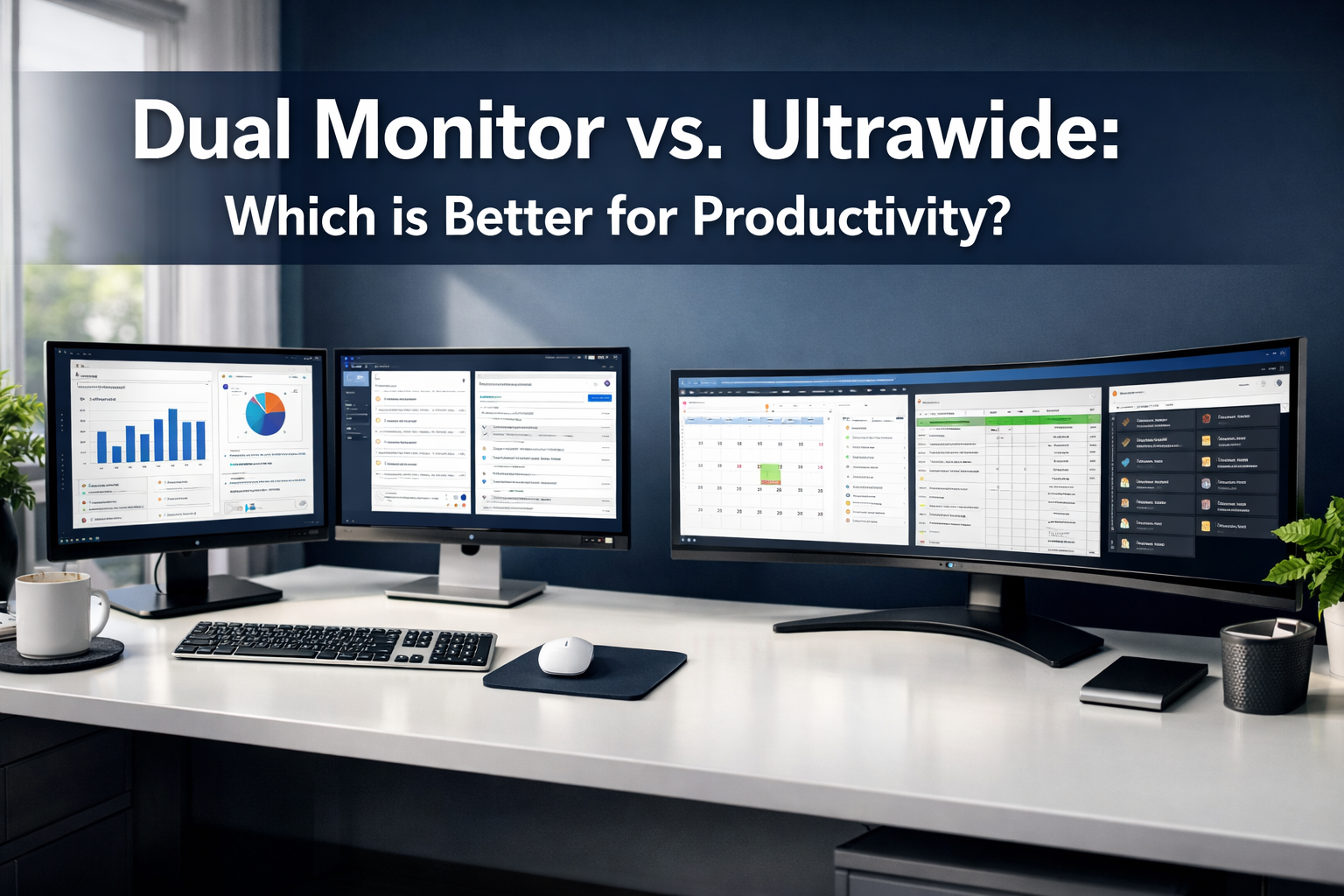

Picture this: You're juggling three different applications, switching between browser tabs, a spreadsheet, and a video call, and your single monitor feels like trying to work through a keyhole. The question of Dual Monitor vs. Ultrawide: Which is Better for Productivity? has become one of the most debated topics among remote workers, developers, designers, and anyone serious about maximizing their workflow efficiency in 2026. With screen real estate directly impacting how much work gets done, choosing the right setup isn't just about aesthetics—it's about transforming how effectively tasks get completed throughout the workday.
Key Takeaways
- Dual monitors excel at task separation, allowing distinct applications on separate screens with physical boundaries that help mental organization and reduce cognitive load
- Ultrawide monitors provide seamless workflows ideal for timeline-based work, wide spreadsheets, and applications that benefit from continuous horizontal space without bezels
- Window management tools like PowerToys FancyZones and DisplayFusion are essential for maximizing productivity regardless of which setup is chosen
- Your specific workflow determines the winner: coders and multitaskers often prefer dual monitors, while video editors and data analysts typically favor ultrawides
- Budget considerations matter: dual monitor setups can be more cost-effective initially, while ultrawides offer premium features at higher price points
The Case for Dual Monitors: Separation of Tasks
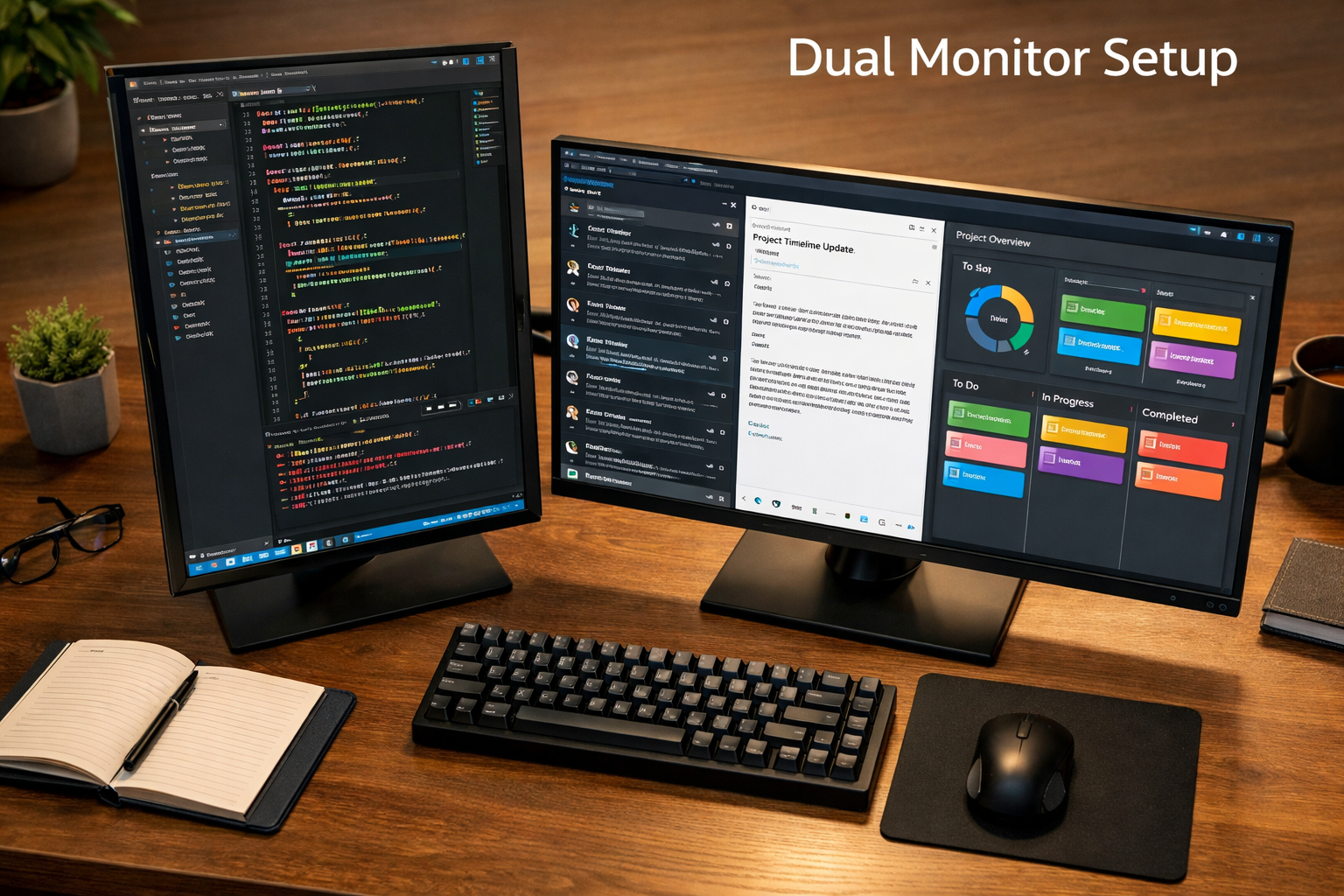
The traditional dual monitor setup remains the gold standard for professionals who need clear mental and physical separation between different work streams. When working with two distinct displays, each screen can serve a dedicated purpose, creating natural boundaries that help the brain compartmentalize tasks more effectively.
Mental Organization and Focus
Having two separate screens creates what productivity experts call "spatial memory anchoring." The left monitor might always house communication tools like Slack, Microsoft Teams, or email clients, while the right monitor displays active work documents, code editors, or design software. This consistent spatial arrangement reduces the cognitive load of remembering where specific applications are located.
For professionals managing multiple projects simultaneously, dual monitors provide distinct "workspaces" that can be dedicated to different clients or tasks. A graphic designer might keep client feedback and reference images on one screen while actively designing on the other. Similarly, professionals pursuing advanced education opportunities often find dual monitors invaluable for research papers on one screen and writing on the other.
Flexibility in Screen Orientation
One significant advantage of dual monitors is the flexibility to orient screens differently. Many developers and writers prefer one monitor in portrait mode for viewing long code files or documents, while keeping the second in landscape for traditional application viewing. This mixed orientation setup is impossible with a single ultrawide display.
Cost-Effectiveness and Upgradeability
From a financial perspective, dual monitor setups often provide better value, especially when building a workspace incrementally. Starting with one quality monitor and adding a second identical or complementary display later spreads out the investment. If one monitor fails, work can continue on the remaining screen—a redundancy that ultrawide users don't enjoy.
Additionally, when it's time to upgrade, selling or repurposing individual monitors is typically easier than dealing with a specialized ultrawide display. For those considering career opportunities abroad, the portability of standard monitors makes relocation simpler.
Ideal Use Cases for Dual Monitors
Dual monitors shine brightest for:
- 💻 Software developers who need code on one screen and documentation, terminals, or debugging tools on another
- 📊 Financial analysts comparing multiple spreadsheets or monitoring live market data alongside analysis tools
- 🎨 Graphic designers who reference client briefs and asset libraries while working in design software
- 📝 Content writers and researchers who need source material visible while writing
- 🎮 Streamers and content creators who manage streaming software, chat, and the actual game or content separately
The physical bezel between screens, often cited as a disadvantage, actually serves as a visual delimiter that helps many users maintain focus on their primary task while keeping secondary information accessible in peripheral vision.
The Case for Ultrawide: Seamless Timelines and Spreadsheets
Ultrawide monitors—typically 34 inches or larger with 21:9 or even 32:9 aspect ratios—have revolutionized workflows that demand continuous horizontal space. These expansive displays eliminate the center bezel entirely, creating an immersive workspace that fundamentally changes how certain professionals approach their work.
Uninterrupted Visual Flow
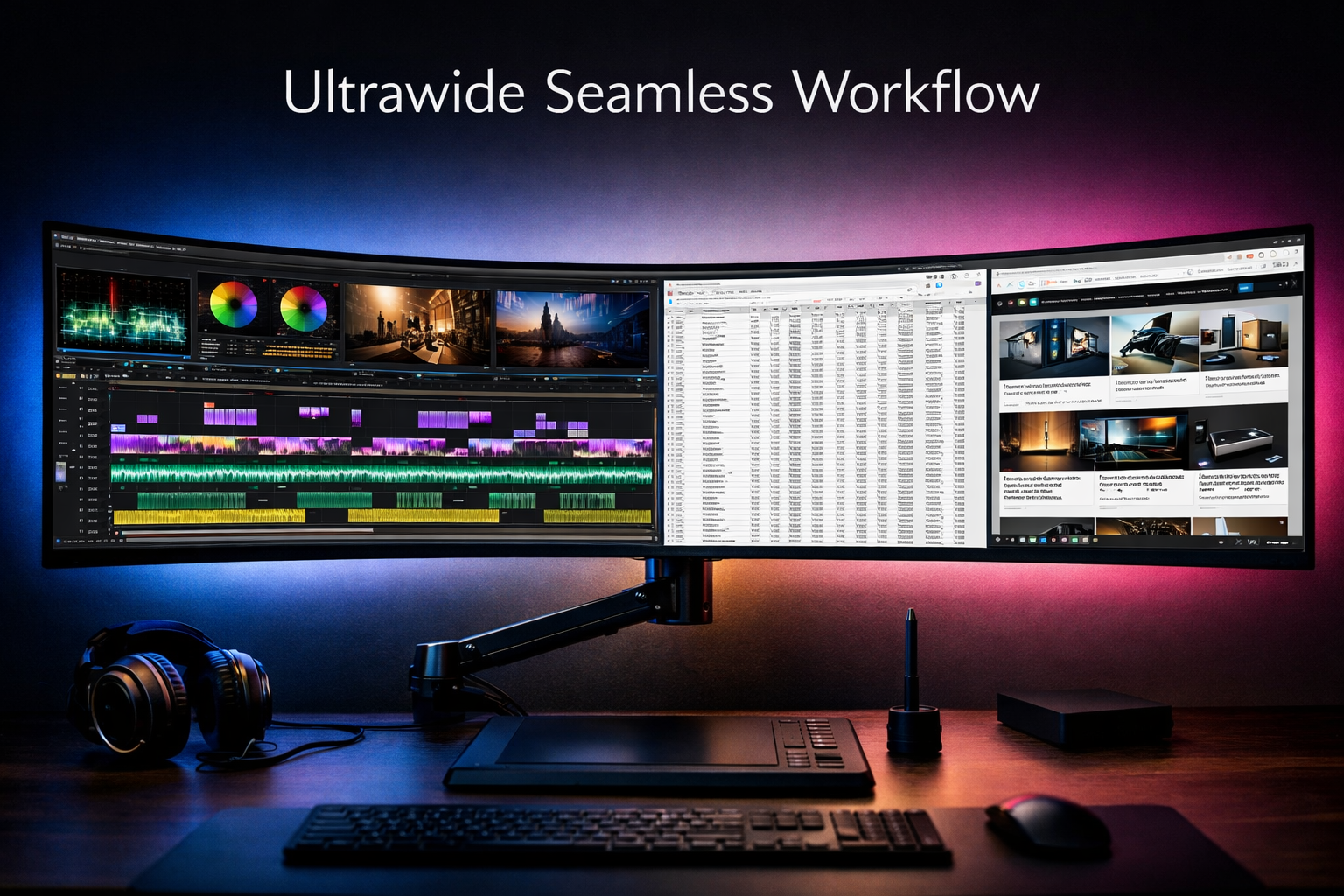
For applications that benefit from horizontal continuity, ultrawide monitors are transformative. Video editors working in Adobe Premiere Pro, DaVinci Resolve, or Final Cut Pro can view extended timelines without interruption, seeing more clips, transitions, and effects simultaneously. This panoramic view reduces scrolling and provides better context for editing decisions.
Financial professionals and data scientists working with wide spreadsheets containing dozens of columns no longer need to constantly scroll horizontally or zoom out to illegibility. The seamless workspace allows natural viewing of complex datasets, improving accuracy and reducing eye strain from constant refocusing.
Immersive Experience and Aesthetic Appeal
Beyond productivity, ultrawide monitors deliver an immersive visual experience that dual monitors simply cannot match. The curved variants (especially 1000R or 1500R curvature) wrap around the user's field of vision, creating a more engaging workspace. For professionals in creative fields or those who value aesthetics, the clean, modern look of a single ultrawide monitor on a desk is undeniably appealing.
Many professionals pursuing international career opportunities appreciate how ultrawide setups create professional-looking home offices ideal for video conferences, where the streamlined appearance projects competence and organization.
Simplified Cable Management
A single ultrawide monitor means one power cable, one display cable, and one USB hub connection (if applicable). This simplified setup reduces desk clutter significantly compared to dual monitors requiring double the connections. For minimalists and those with limited desk space, this advantage cannot be overstated.
Advanced Features and Technology
Modern ultrawide monitors in 2026 often include cutting-edge features like:
- ⚡ High refresh rates (120Hz-165Hz) for smooth scrolling and reduced motion blur
- 🎨 Superior color accuracy with wide gamut coverage (99% sRGB, Adobe RGB support)
- 🔌 USB-C connectivity with power delivery, allowing laptop charging through a single cable
- 📺 Picture-by-Picture (PBP) modes that can simulate dual monitor functionality
- 🌙 Advanced eye-care technologies including flicker-free backlighting and blue light filters
Ideal Use Cases for Ultrawide Monitors
Ultrawide displays excel for:
- 🎬 Video editors who need to see extended timelines with multiple tracks simultaneously
- 📈 Data analysts and traders working with wide spreadsheets and multiple data streams
- 🏗️ CAD designers and architects viewing large blueprints and technical drawings
- 🎵 Music producers working with DAW software showing numerous tracks horizontally
- 🎮 Gaming enthusiasts who also use their setup for productivity (though this article focuses on work)
For professionals in fields like engineering or technical work, the ability to view complex schematics or code bases with maximum context can significantly reduce errors and improve efficiency.
Dual Monitor vs. Ultrawide: Which is Better for Productivity? – The Hybrid Approach
Before declaring a winner, it's worth noting that some power users have discovered a hybrid solution: pairing an ultrawide monitor with an additional vertical monitor. This setup combines the seamless horizontal space of an ultrawide with the task separation benefits of multiple displays, though it requires substantial desk space and investment.
Window Snapping Tools You Need to Use
Regardless of whether the choice falls on dual monitors or an ultrawide display, window management software is absolutely essential for maximizing productivity. These tools transform how applications are organized and accessed, making either setup significantly more efficient.
Native Operating System Tools
Windows 11 Snap Layouts (2026 version) has evolved considerably, offering:
- Six pre-configured snap zones accessible by hovering over the maximize button
- Snap Groups that remember application arrangements
- Multi-monitor support that recalls which apps belong on which screen
- Keyboard shortcuts (Win + Arrow keys) for quick window positioning
macOS Rectangle and Magnet provide similar functionality for Mac users, with customizable keyboard shortcuts and grid-based window positioning that makes organizing applications intuitive and fast.
Advanced Third-Party Solutions
For users seeking maximum control, several premium tools offer capabilities far beyond native options:
PowerToys FancyZones (Windows – Free)
Microsoft's PowerToys suite includes FancyZones, which allows creation of custom grid layouts tailored to specific workflows. Users can design zones of any size and shape, then snap windows into these predetermined areas with keyboard shortcuts. For professionals managing complex international applications, having dedicated zones for different document types streamlines the process considerably.
Key features:
- ✅ Custom zone templates for different work modes
- ✅ Per-monitor zone configurations
- ✅ Zone highlighting when dragging windows
- ✅ Keyboard-driven workflow support
DisplayFusion (Windows – Paid)
For dual monitor users specifically, DisplayFusion offers professional-grade multi-monitor management:
- Monitor-specific taskbars with independent system trays
- Custom window position profiles that can be triggered with hotkeys
- Monitor fading to focus attention on active screen
- Wallpaper management across multiple displays
- Window location history and quick restore functions
BetterSnapTool and Mosaic (macOS – Paid)
Mac users working with ultrawide or dual setups benefit from these applications that provide:
- Customizable snap areas and keyboard shortcuts
- Application-specific window rules
- Multi-display support with independent configurations
- Touchpad gesture integration for quick window management
Workflow-Specific Window Arrangements
The true power of window management tools emerges when configurations are tailored to specific tasks:
For coding workflows:
- Main editor occupying 60% of screen width
- Terminal/console in bottom-right 20%
- Documentation browser in top-right 20%
For content creation:
- Reference materials on left third
- Writing application in center two-thirds
- Research browser tabs in right quarter
For data analysis:
- Primary spreadsheet maximized on main display
- Data visualization tools on secondary display or snapped to right third
- Communication tools in small persistent window
Professionals managing international job applications often create dedicated window layouts for application tracking, document preparation, and research, switching between these profiles with simple keyboard shortcuts.
Automation and Productivity Multiplication
Advanced users combine window management with automation tools like AutoHotkey (Windows) or Keyboard Maestro (Mac) to create workflows where:
- Opening specific applications automatically arranges all related windows
- Switching between projects instantly reconfigures the entire workspace
- Time-based rules adjust window layouts for different parts of the workday
This level of automation transforms either dual monitor or ultrawide setups into productivity powerhouses that adapt to work patterns rather than requiring constant manual adjustment.
Dual Monitor vs. Ultrawide: Which is Better for Productivity? – Making Your Decision
When evaluating Dual Monitor vs. Ultrawide: Which is Better for Productivity?, several critical factors should guide the decision:
Workflow Analysis
Choose dual monitors if:
- Work involves distinct, separate tasks that benefit from physical separation
- Frequent collaboration requires sharing one screen while working on another
- Applications are used that don't benefit from extra-wide displays
- Budget constraints favor incremental investment
- Desk space can accommodate two monitors but not an ultrawide
Choose an ultrawide if:
- Primary applications involve timelines, wide spreadsheets, or panoramic views
- A clean, minimalist aesthetic is important
- Immersive focus on a single continuous workspace is preferred
- Budget allows for premium display investment
- Desk depth can accommodate the larger single display
Ergonomic Considerations
Neck strain is a real concern with both setups. Dual monitors can cause repetitive head turning, while ultrawides require more eye movement. The ideal solution involves:
- Positioning the primary work area directly in front
- Adjusting monitor height so the top of the screen is at or slightly below eye level
- Using monitor arms for optimal positioning flexibility
- Taking regular breaks regardless of setup
For those considering career changes or relocations, portability might favor dual standard monitors over specialized ultrawide displays.
Budget Breakdown (2026 Pricing)
Dual Monitor Setup:
- Two quality 27" 1440p monitors: $400-$800
- Dual monitor stand: $50-$150
- Total: $450-$950
Ultrawide Setup:
- Quality 34" 1440p ultrawide: $500-$800
- Premium 49" 1440p super-ultrawide: $900-$1,500
- Monitor arm (recommended): $100-$300
- Total: $600-$1,800
Future-Proofing Considerations
Technology evolves rapidly. In 2026, considerations include:
- OLED ultrawide monitors offering superior contrast but at premium prices
- Mini-LED backlighting providing better HDR performance
- USB4 and Thunderbolt 5 connectivity for simplified single-cable solutions
- Higher refresh rates becoming standard even for productivity displays
Conclusion: Verdict Based on Workflow (Coding vs. Writing)
After examining both sides of the Dual Monitor vs. Ultrawide: Which is Better for Productivity? debate, the answer ultimately depends on individual workflow patterns rather than a universal recommendation.
For coders and developers, dual monitors typically provide superior productivity. The ability to have code on one screen and documentation, terminals, debugging tools, or reference materials on another creates a natural workflow separation that aligns with how development work actually happens. The flexibility to orient one monitor vertically for viewing long code files is invaluable, and the physical separation helps maintain focus on the primary coding task while keeping auxiliary tools accessible.
For writers, content creators, and researchers, the choice is more nuanced. Writers who primarily work in a single document might find an ultrawide's immersive experience conducive to deep focus, using window snapping to keep research materials visible alongside their writing application. However, those managing multiple projects or requiring frequent reference to source materials often prefer the distinct separation dual monitors provide.
For video editors, data analysts, and CAD professionals, ultrawide monitors deliver clear advantages. The continuous horizontal space fundamentally improves how these applications function, reducing scrolling and providing better context for decision-making.
Actionable Next Steps
Ready to optimize your workspace? Follow these steps:
- Audit your workflow for one week, noting which applications you use simultaneously and whether they benefit from separation or continuity
- Test before investing if possible—many electronics retailers have generous return policies; some employers allow testing equipment before purchase
- Invest in window management software regardless of choice—tools like PowerToys FancyZones or DisplayFusion multiply productivity gains
- Prioritize ergonomics by investing in quality monitor arms that allow height, tilt, and rotation adjustments
- Consider your complete workspace including desk size, lighting, and whether you'll use the setup for video calls
For professionals building home offices while pursuing educational opportunities or international career paths, remember that your monitor setup is an investment in daily productivity that compounds over years of use.
The debate between dual monitors and ultrawide displays doesn't have a single winner—it has the right answer for your specific needs. By honestly assessing workflow patterns, budget constraints, and workspace limitations, the optimal choice becomes clear. Whether that's the task-separating power of dual displays or the seamless immersion of an ultrawide, 2026 offers exceptional options for every productivity-focused professional.