
Imagine waking up to find your computer corrupted, a crucial client presentation vanished, or years of cherished family photos irretrievably lost. In our increasingly digital world, where personal memories, academic achievements, and professional livelihoods are stored on fragile hardware, data loss is not just a possibility—it's an inevitability waiting to happen. Hard drives fail, laptops get stolen, natural disasters strike, and even a simple accidental deletion can erase irreplaceable information in an instant. This stark reality underscores the critical importance of a robust data protection plan. Fortunately, there's a widely recognized, highly effective method for safeguarding your digital life: the 3-2-1 backup strategy. This comprehensive approach ensures that even in the face of catastrophic data loss, your valuable work remains secure and recoverable.
Key Takeaways
- The 3-2-1 backup strategy is the gold standard for data protection, ensuring resilience against various threats.
- It mandates having at least three copies of your data, including the original.
- These copies should be stored on at least two different types of media for varied failure points.
- Crucially, one copy must be offsite, physically separated from your primary location.
- Implementing this strategy offers unparalleled peace of mind and significantly reduces the risk of permanent data loss in 2026.
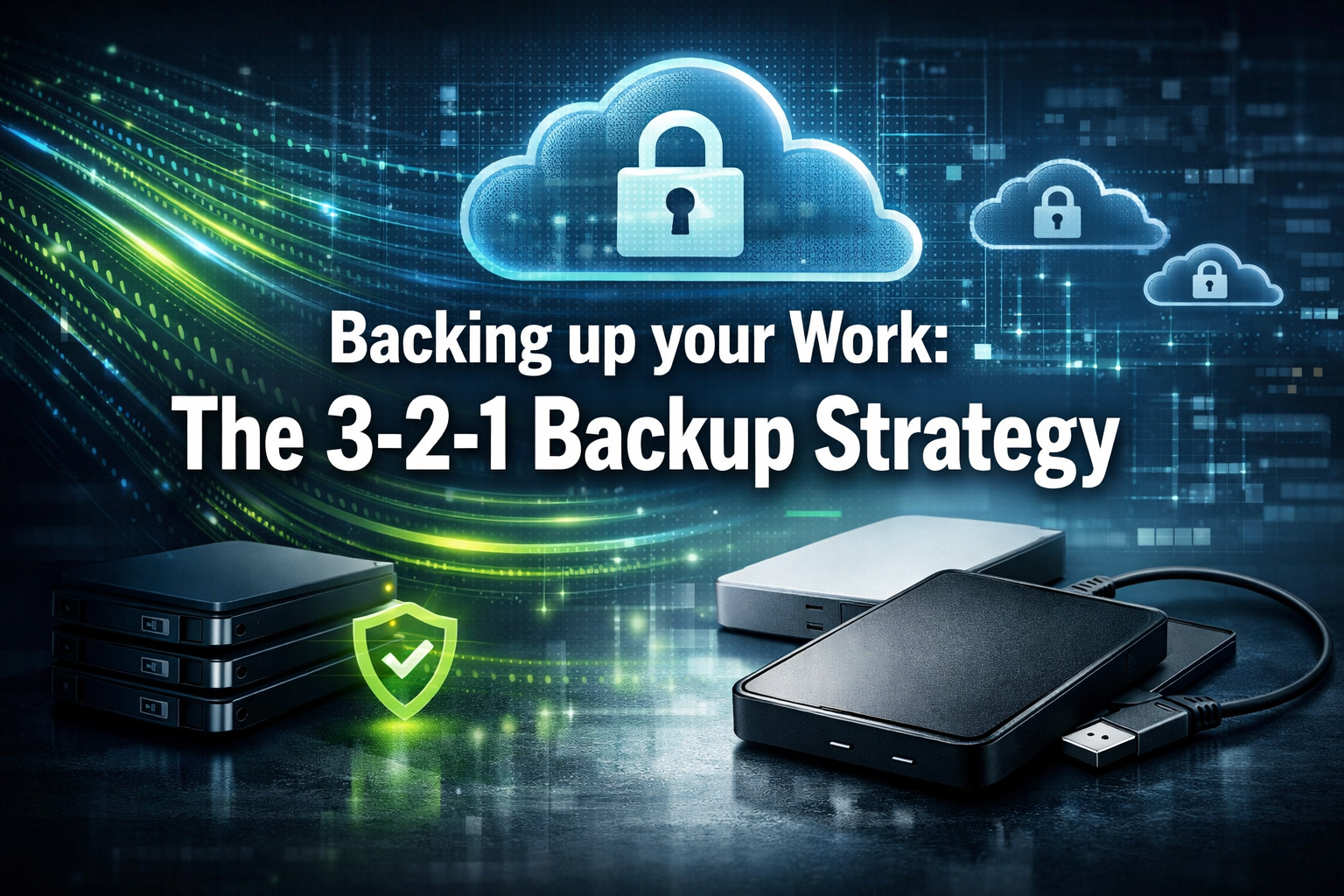
What is the 3-2-1 rule? Backing up your Work: The 3-2-1 Backup Strategy
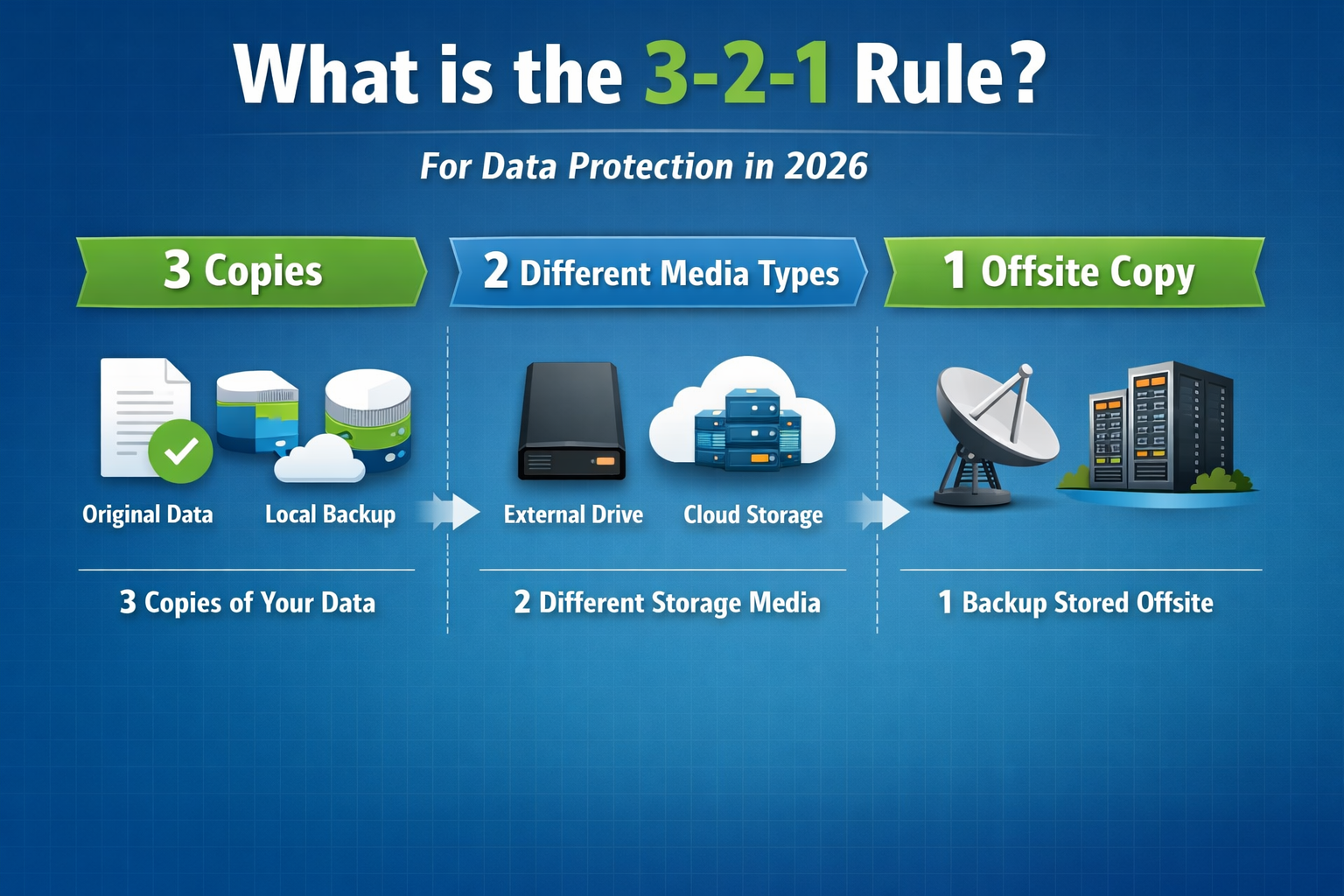
The 3-2-1 rule is a simple yet powerful guideline for data backup that has become an industry standard. It's a fundamental principle designed to protect against virtually any data loss scenario. Let's break down each component:
3 Copies of Your Data
This first rule states that you should always have at least three copies of any important data. This includes your original working files and two additional backups. Why three? Because having multiple copies drastically reduces the chance that all copies will be compromised simultaneously. If your original drive fails, you still have two other versions. If one backup is corrupted, you still have another. This redundancy is the bedrock of the entire strategy. For instance, if you're managing important applications or considering advanced technical roles, safeguarding your data through methods like this ensures you are always prepared for any contingency, much like the precision required in 140,000 FIFO Mining Jobs in Western Australia.
2 Different Media Types
The second part of the rule specifies that these three copies should be stored on at least two different types of storage media. This is vital because different media types have different failure modes. For example, a hard disk drive (HDD) and a solid-state drive (SSD) might fail differently, but even more distinct are a local hard drive and cloud storage.
- Examples of media types:
- Internal hard drive (your computer's main drive)
- External hard drive
- USB flash drive
- Network Attached Storage (NAS)
- Cloud storage (e.g., Google Drive, Dropbox, OneDrive, iCloud)
- Optical media (CDs/DVDs/Blu-rays – though less common now for active backups)
Storing backups on two different types of media protects against a single type of media failure. If all your backups were on external hard drives, a power surge that damages one might damage them all. By diversifying your media, you create separate points of failure, increasing your overall data resilience.
1 Offsite Copy
The final and arguably most crucial component is having at least one copy stored offsite. "Offsite" means physically separated from your primary location where the original data and other backups reside. This protects your data from localized disasters such as fire, flood, theft, or severe hardware damage. If your office burns down, all local copies—your computer, external drives, and even a local NAS—would be destroyed. An offsite copy, however, would remain safe.
- Common offsite solutions include:
- Cloud backup services (e.g., Backblaze, Carbonite)
- External drive stored at a friend's house or a safety deposit box
- A remote server or data center
The offsite copy is your ultimate fallback, ensuring that even in the worst-case scenario, your data can be recovered. This foresight is similar to planning for international career opportunities, like understanding the Skilled Worker Visa for the UK in 2026, where having contingency plans is key.
In summary, the 3-2-1 rule for Backing up your Work: The 3-2-1 Backup Strategy provides a layered defense against data loss. It's not about having a backup; it's about having multiple, diverse, and geographically separated backups. Implementing this strategy ensures that your valuable digital assets are protected against a wide range of threats in 2026.
Setting up an Automated External Hard Drive Backup
The first step in implementing the 3-2-1 strategy is often creating a local, automated backup to an external hard drive. This serves as one of your two different media types and provides a quick, easily accessible recovery point.
Choosing the Right External Hard Drive
When selecting an external hard drive, consider the following:
- Capacity: It should be large enough to hold all the data you want to back up, plus room for future growth. A good rule of thumb is to choose a drive with at least twice the capacity of your computer's internal storage.
- Speed: USB 3.0 or USB-C drives offer faster transfer speeds, making backups quicker.
- Reliability: Opt for reputable brands known for durable and reliable products.
- Portability (optional): If you plan to take the drive offsite periodically, consider a more rugged and compact model.
Setting Up Automation
Manual backups are prone to human error and inconsistency. Automation is key to ensuring your data is regularly protected.
On Windows: File History
Windows offers a built-in backup solution called File History.
- Connect your external drive: Plug the external hard drive into your computer.
- Access File History: Go to
Settings > Update & Security > Backup. - Add a drive: Under "Back up using File History," click "Add a drive" and select your external hard drive.
- Turn it on: Ensure the "Automatically back up my files" toggle is set to "On."
- Configure options: Click "More options" to customize how often backups occur (e.g., every hour, daily) and how long saved versions are kept. You can also add or exclude specific folders.
On macOS: Time Machine
macOS has an excellent integrated backup utility called Time Machine.
- Connect your external drive: Plug in an external hard drive.
- Time Machine prompt: macOS will usually ask if you want to use the drive with Time Machine. Select "Use as Backup Disk."
- Encrypt (recommended): Check "Encrypt Backups" for added security.
- Start Backup: Time Machine will automatically start backing up your system.
- Configure options: If you need to customize settings or select a drive manually, go to
System Settings > General > Time Machine. You can add or remove backup disks and exclude specific items from backups.
Third-Party Backup Software
For more advanced features, cross-platform compatibility, or if built-in tools don't meet your needs, consider third-party backup software like:
- Acronis Cyber Protect Home Office: Offers comprehensive backup, anti-malware, and cyber protection.
- EaseUS Todo Backup: Provides full, incremental, and differential backups.
- Veeam Agent for Microsoft Windows/Linux: Robust options for more technical users.
Whichever method you choose, ensure the automated backup runs regularly, ideally daily or even more frequently for critical work. This local copy is your first line of defense and critical for the effectiveness of Backing up your Work: The 3-2-1 Backup Strategy.
Cloud Sync as the Secondary Layer
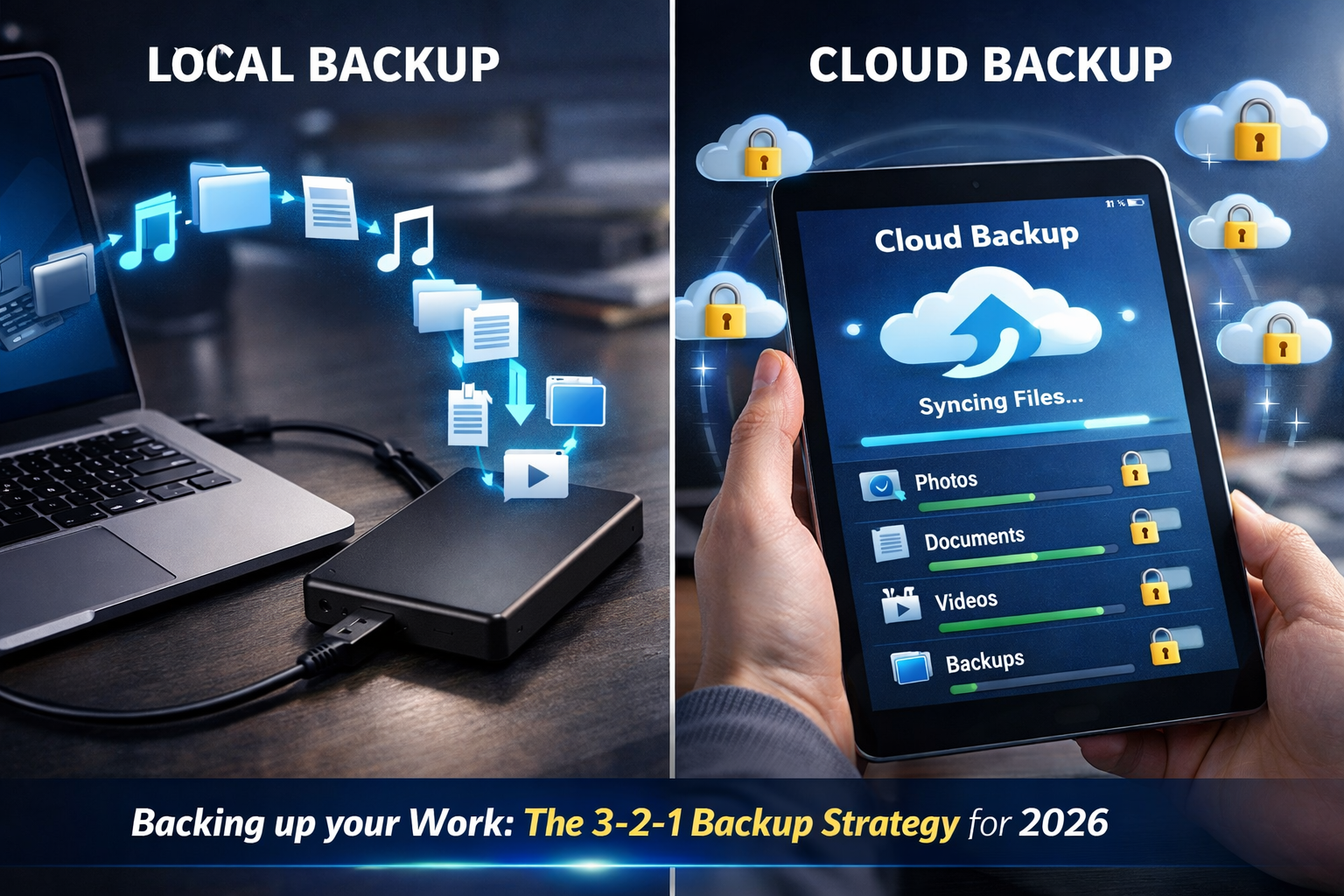
After setting up your local external hard drive backup, the next crucial step in the 3-2-1 strategy is to implement an offsite backup, ideally through cloud storage. This fulfills the "one offsite copy" requirement and often serves as one of your "two different media types." Cloud services offer convenience, scalability, and robust security, making them an excellent choice for safeguarding your data remotely.
Understanding Cloud Storage vs. Cloud Backup
It's important to distinguish between cloud sync services and dedicated cloud backup services:
- Cloud Sync Services (e.g., Dropbox, Google Drive, OneDrive, iCloud): These services synchronize selected files or folders across multiple devices and store them in the cloud. They are excellent for collaboration, accessibility, and keeping current versions of files. However, they typically synchronize deletions (if you delete a file locally, it often gets deleted from the cloud after a short grace period) and may not keep extensive version histories. They primarily act as a mirror rather than a comprehensive historical backup.
- Cloud Backup Services (e.g., Backblaze, Carbonite, iDrive): These are designed specifically for full system backups, often including operating system files, applications, and all user data. They typically offer unlimited storage, extensive version histories (allowing you to restore files from weeks or months ago), and do not synchronize deletions in the same way. They are true "set-it-and-forget-it" backup solutions.
For a robust 3-2-1 strategy, a dedicated cloud backup service is generally recommended for your offsite copy. However, cloud sync services can still play a valuable role for frequently accessed documents or specific projects.
Integrating Cloud Storage into Your 3-2-1 Strategy
Using a cloud service achieves two critical elements of the 3-2-1 rule:
- Different Media Type: Cloud storage is inherently different from an external hard drive, providing diverse failure points.
- Offsite Copy: Data stored in the cloud is housed in remote data centers, making it physically separate from your local devices and protected from local disasters.
Choosing a Cloud Provider
When selecting a cloud backup or sync provider, consider:
- Storage Capacity: Ensure it meets your current and future needs. Many dedicated backup services offer unlimited storage for a fixed fee.
- Cost: Compare monthly or annual subscription fees.
- Security Features: Look for end-to-end encryption, two-factor authentication, and robust data center security.
- Ease of Use: A user-friendly interface and straightforward restore process are important.
- Version History: How long does the service retain previous versions of files?
- Support: Reliable customer support can be crucial during a data recovery event.
Setting Up Cloud Backup
Let's look at an example using a popular dedicated cloud backup service like Backblaze, which offers straightforward setup.
- Sign Up: Create an account on the provider's website.
- Download and Install: Download their desktop application and install it on your computer.
- Initial Configuration: The application will typically guide you through the initial setup. This often involves:
- Selecting Drives: Choose which internal and external drives you want to back up. Most services allow you to select all drives by default.
- Scheduling: Set a schedule for automatic backups. Many services offer continuous backup, meaning new or changed files are backed up almost instantly.
- Encryption: Configure a private encryption key (if offered). While this enhances security, ensure you remember this key, as losing it means you cannot restore your data.
- First Backup: The initial backup will take the longest, as all your selected data needs to be uploaded. This might take days or even weeks depending on your internet speed and data volume.
- Verify and Monitor: Once the initial backup is complete, regularly check the cloud service dashboard or application to ensure backups are running successfully. Most services send email notifications if a backup fails or hasn't run in a while.
Remember, while cloud sync services like Google Drive are fantastic for accessibility and collaboration, for a true offsite backup that meets the 3-2-1 rule's requirements for comprehensive data protection, a dedicated cloud backup solution is often superior. This dual approach of local external drive and offsite cloud storage forms the core of a resilient backup strategy. For professionals considering global opportunities, understanding data security is as vital as exploring options for Canada Job Seeker Visa in 2026 or applying for PhD Scholarships in Australia 2026.
Best Practices for Your Cloud Layer
- Encrypt Your Data: Always use encryption, either offered by the cloud service or via third-party encryption tools, before uploading sensitive data.
- Strong Passwords: Use strong, unique passwords for your cloud accounts and enable two-factor authentication (2FA).
- Regular Verification: Periodically check your cloud backup status. Some services allow you to perform a test restore of a few files to ensure everything is working correctly.
- Consider a Hybrid Approach: For ultra-critical data, you might use one dedicated cloud backup service (e.g., Backblaze) and a separate cloud sync service (e.g., Google Drive) for an additional layer of redundancy, effectively having two offsite copies on different cloud providers. This ensures your Backing up your Work: The 3-2-1 Backup Strategy is as robust as possible. When thinking about secure environments, it's worth considering how important digital security is across various sectors, even for roles in 62,000 Caregiver Jobs in Canada with Visa Sponsorship.
By combining an automated local external hard drive backup with a robust cloud backup service, you establish a powerful, multi-layered defense against data loss, securing your valuable work in 2026. This setup adheres perfectly to the 3-2-1 rule and provides unparalleled peace of mind. For those managing complex professional lives, such as those seeking 60,000 STEM Scholarships in the USA 2026 or navigating the requirements for international study, understanding comprehensive data protection is indispensable.
Conclusion: Peace of Mind is Priceless
In a world where digital data forms the backbone of our personal and professional lives, neglecting a robust backup strategy is akin to walking a tightrope without a safety net. The consequences of data loss—ranging from minor inconveniences to devastating financial and emotional setbacks—are simply too great to ignore. Implementing the 3-2-1 backup strategy for backing up your work is not just a technical recommendation; it's an essential investment in your future security and peace of mind.
By diligently maintaining three copies of your data, storing them on two different types of media, and ensuring one copy resides safely offsite, you create a fortress around your digital assets. This comprehensive approach safeguards against hardware failures, accidental deletions, cyber threats, and even catastrophic natural disasters. It transforms the anxiety of potential data loss into the confidence of assured recovery.
The current year, 2026, continues to bring advancements in technology, but it also brings increasing risks. Proactive data management, guided by the 3-2-1 rule, is no longer optional—it is fundamental. Take the time today to assess your current data, invest in the necessary hardware and cloud services, and automate your backup processes. Remember, the true value of a backup isn't realized until you need it, and by then, it's either your savior or a source of profound regret.
Start building your 3-2-1 backup strategy today. Your future self, and your irreplaceable data, will thank you.
Actionable Next Steps:
- Audit Your Data: Identify all critical files and folders on your computer, external drives, and mobile devices.
- Acquire Necessary Hardware: Purchase an external hard drive with sufficient capacity if you don't already have one.
- Set Up Local Backup: Configure an automated local backup using Windows File History, macOS Time Machine, or third-party software to your external drive.
- Choose a Cloud Solution: Select a reputable cloud backup service (e.g., Backblaze) for your offsite copy.
- Configure Cloud Backup: Install and set up the cloud backup client, ensuring all critical data is being uploaded automatically.
- Verify & Test: Periodically check the status of your backups and, if possible, perform a test restore of a few files to ensure functionality.
- Review Annually: Make it a habit to review your backup strategy at least once a year (e.g., in early 2026) to ensure it still meets your needs as your data grows and technology evolves.
Meta Title: 3-2-1 Backup Strategy: Secure Your Data in 2026
Meta Description: Learn the 3-2-1 backup strategy to protect your work in 2026. Keep 3 copies on 2 media types with 1 offsite for ultimate data security.