
The fear of losing data is a universal dread, especially for freelancers whose livelihoods depend on their digital assets. Imagine losing client files, project prototypes, or years of creative work to a hard drive failure or an accidental deletion. This nightmare scenario highlights the critical need for robust cloud storage. In the ongoing Cloud Storage Wars: Google Drive vs. Dropbox for Freelancers, choosing the right platform isn't just about storing files; it's about safeguarding your entire business, streamlining your workflow, and ensuring seamless collaboration. This article will delve deep into the features, benefits, and drawbacks of these two industry giants, helping freelancers make an informed decision in 2026.
Key Takeaways
- Cost-Effectiveness Varies by Need: Google Drive often offers more generous free tiers and competitive pricing for larger storage plans, especially when integrated with Google Workspace. Dropbox can be pricier but provides robust standalone syncing.
- Seamless Integration vs. Platform Agnosticism: Google Drive excels for those deeply embedded in the Google ecosystem, offering tight integration with Docs, Sheets, and Slides. Dropbox is more platform-agnostic, providing a consistent experience across various operating systems and applications.
- Sync Speed and Resource Usage: Both platforms offer excellent sync speeds, but their impact on system resources can differ. Dropbox is historically known for efficient desktop synchronization, while Google Drive has improved significantly, especially with its Drive for Desktop client.
- Collaboration is Key: Both offer real-time collaboration, but Google Drive's native suite (Docs, Sheets) makes it particularly powerful for document-centric teamwork. Dropbox provides excellent versioning and commenting features, often preferred for creative assets.
- Security and Control: Both prioritize security with encryption and two-factor authentication. Freelancers should consider specific compliance needs or advanced sharing controls when making their choice.
Price per GB Comparison
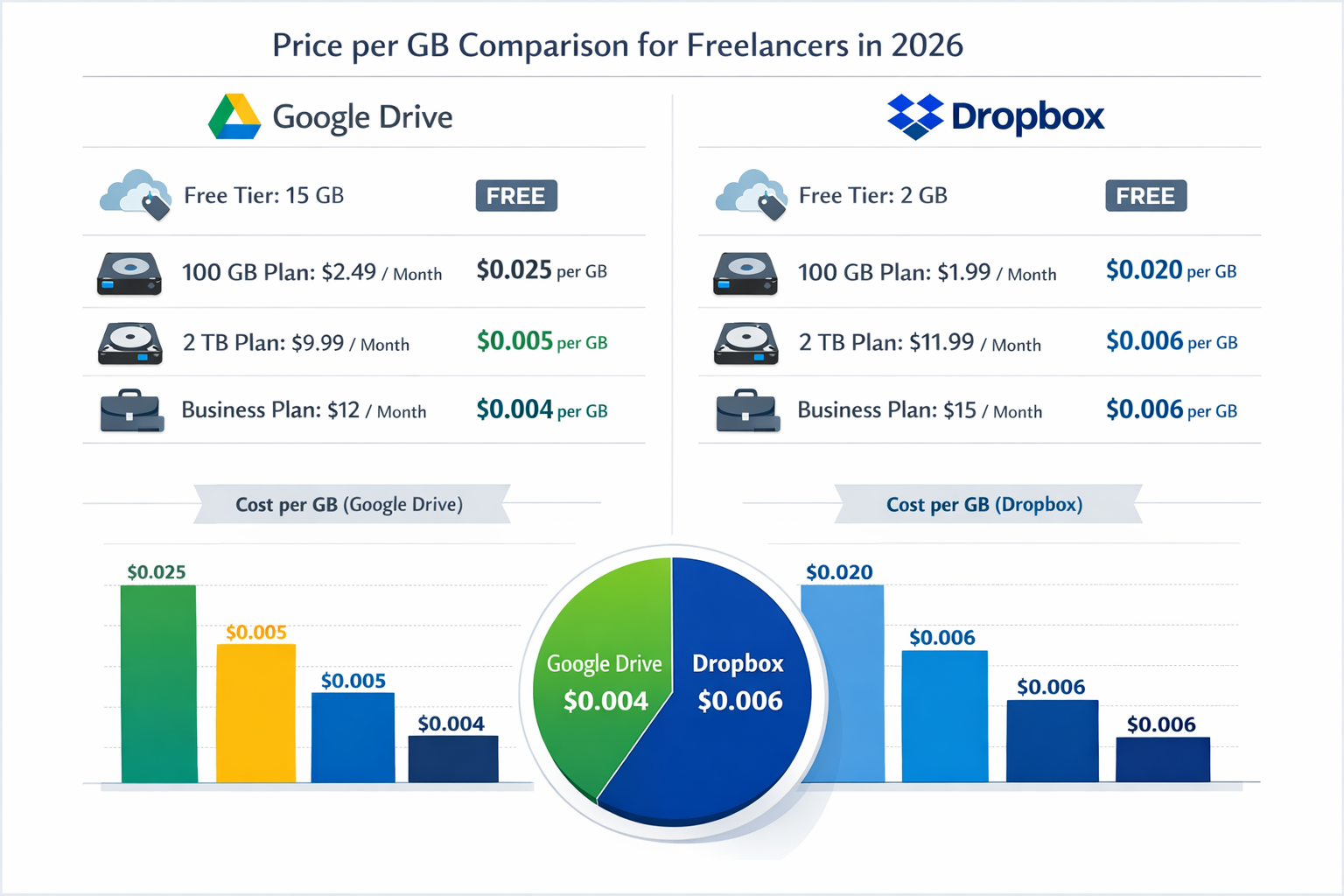
For freelancers, every penny counts. When evaluating cloud storage solutions, the price-per-gigabyte (GB) can be a significant factor, especially as storage needs grow. The Cloud Storage Wars: Google Drive vs. Dropbox for Freelancers often heat up when comparing their pricing structures in 2026.
Google Drive's pricing is tightly integrated with its Google One plans, which also encompass storage for Gmail and Google Photos. This unified approach can offer excellent value, especially for those already utilizing Google's ecosystem. The free tier, for instance, provides a generous 15 GB, shared across these services. For paid plans, Google One typically offers:
- 100 GB: Often around $1.99 per month.
- 200 GB: Around $2.99 per month.
- 2 TB: A popular choice for many freelancers, typically priced at $9.99 per month.
- Higher tiers: Options for 5 TB, 10 TB, or more are available for power users.
These prices often translate to a highly competitive cost per GB, particularly for the 2 TB plan, which offers substantial space for a reasonable monthly fee. The ability to share these storage benefits with family members (up to five others) further enhances its value for personal and professional use.
Dropbox, while widely respected for its performance and user experience, generally starts with a smaller free tier and can be perceived as slightly more expensive per GB, especially for individual users. Their free Basic plan offers 2 GB of storage. While this is useful for light use, most freelancers will quickly outgrow it. Dropbox's paid plans, often under their "Plus" or "Professional" tiers, include:
- Dropbox Plus (2 TB): Typically around $11.99 per month (or less if paid annually). This plan often includes additional features like Smart Sync, full-text search, and extended version history.
- Dropbox Professional (3 TB): Around $19.99 per month, adding even more advanced sharing controls, viewer history, and branding options for shared files.
Let's look at a simplified comparison table for typical freelance needs:
| Feature/Plan | Google Drive (Google One) | Dropbox (Plus/Professional) | Notes |
|---|---|---|---|
| Free Tier | 15 GB (shared) | 2 GB | Google's free tier is significantly larger. |
| 2 TB Plan | ~$9.99/month (Google One 2 TB) | ~$11.99/month (Dropbox Plus 2 TB) | Google often edges out Dropbox on price for 2 TB. |
| Additional Features | VPN, Dark Web Monitoring, Google Experts | Smart Sync, Extended Version History, Viewer History | Both offer valuable extras; choose based on priority. |
| Family Sharing | Yes (up to 5 others) | No (individual plans) | Google One offers a distinct advantage for family sharing. |
Pricing is approximate and subject to change in 2026.
For freelancers who are already heavily invested in Google Workspace (Gmail, Calendar, Meet), Google Drive offers unparalleled integration and often a more attractive overall package. The added benefits of Google One, such as a VPN service and expert support, can further sweeten the deal.
However, Dropbox's slightly higher price often comes with features that many creative professionals value, such as longer file versioning (up to 180 days for Professional plans) and more robust sharing controls, which can be crucial for managing client projects and ensuring data integrity. For those who frequently collaborate on design files, video edits, or large documents, the peace of mind offered by Dropbox's versioning can justify the extra cost. For freelancers looking to expand their skills or find new opportunities, understanding these technological tools is key, much like those seeking a Canada Job Seeker Visa in 2026 would research the best pathways.
"The true cost of cloud storage isn't just the monthly fee; it's the value it brings to your workflow and the peace of mind it offers through robust features like version history and seamless integration."
Ultimately, the best value depends on individual freelance needs. If you live and breathe the Google ecosystem, Google Drive is likely the more economical and integrated choice. If you prefer a standalone, highly performant cloud storage solution with excellent version control, Dropbox might be worth the slight premium.
Sync Speed and System Resources
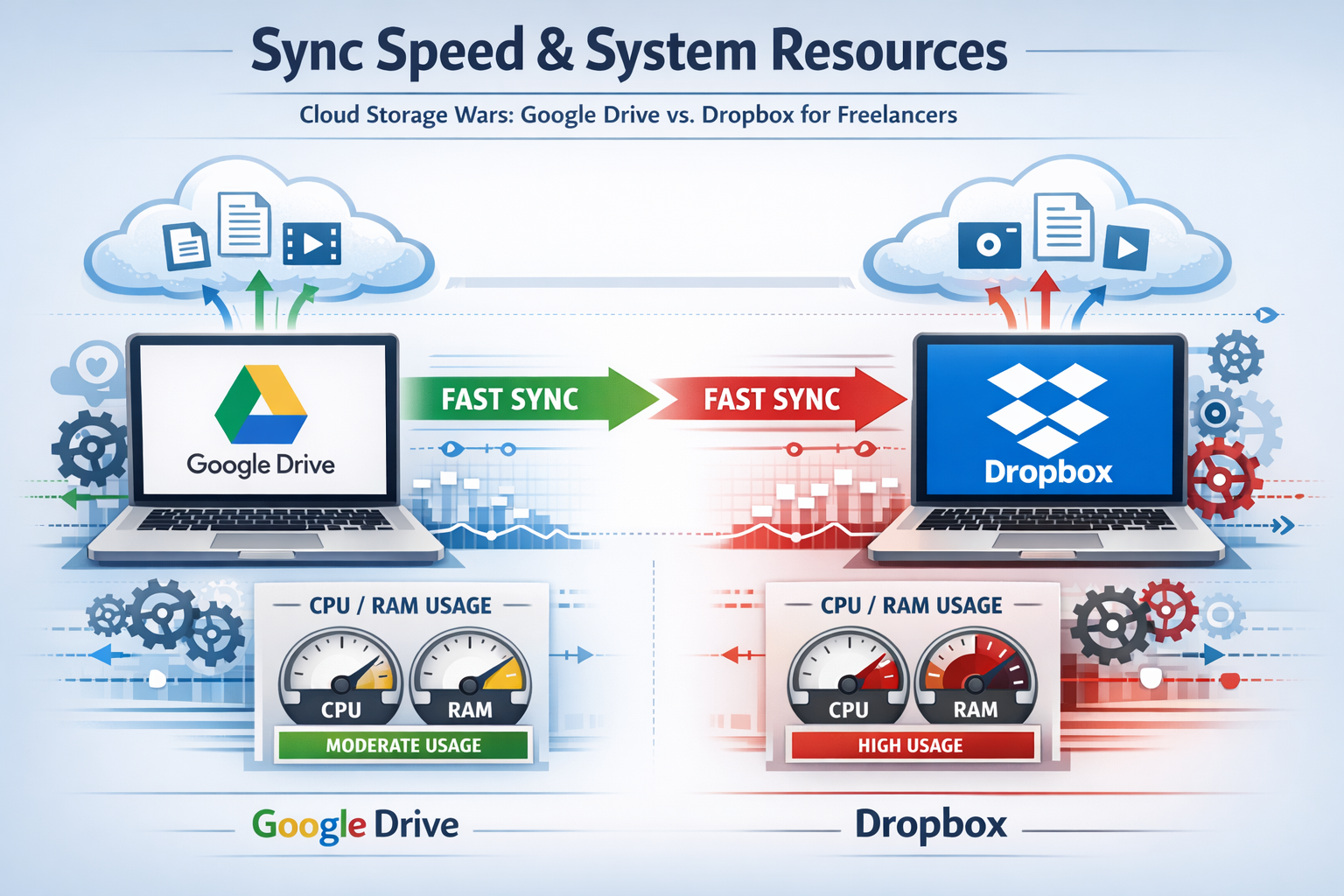
In the fast-paced world of freelancing, efficiency is paramount. Slow sync speeds or applications that hog system resources can quickly derail a productive day. This section of our Cloud Storage Wars: Google Drive vs. Dropbox for Freelancers explores how each platform performs in terms of file synchronization and its impact on your computer's performance in 2026.
Google Drive Sync Performance
Google Drive's sync client, "Drive for desktop," has evolved significantly over the years. It allows users to stream files directly from the cloud or mirror them for offline access.
- Streaming Files: This feature is particularly useful for freelancers with limited local storage. Files are only downloaded when accessed, saving disk space. However, consistent internet access is required.
- Mirroring Files: This option downloads all selected files and folders to your computer, keeping a local copy that is always in sync with the cloud. This is ideal for offline work and faster access.
- Sync Speed: Google Drive generally offers very good sync speeds, often bottlenecked more by your internet connection than by the software itself. Small files sync almost instantly, while larger files (like video projects or high-res images) can take longer, as expected.
- System Resources: Early versions of Google Drive's sync client were sometimes criticized for being resource-intensive. However, "Drive for desktop" has seen substantial improvements. While it does use CPU and RAM, especially during large sync operations, it's generally well-optimized for modern systems. For a freelancer juggling multiple applications, this improved efficiency is crucial. It’s similar to how students seeking 50,000 Fully Funded Masters Scholarships in Canada 2026 Intake need efficient tools to manage their applications.
Dropbox Sync Performance
Dropbox has long been praised for its efficient and reliable synchronization technology. It pioneered many features that other cloud storage services later adopted.
- Selective Sync: This allows users to choose which folders sync to their local device, preventing unnecessary storage consumption.
- Smart Sync (Paid Feature): A highly valuable feature for freelancers with large archives. Smart Sync allows you to see all your files and folders on your computer, but only downloads them when you need them, functioning much like Google Drive's streaming option. This saves significant local disk space without sacrificing visibility.
- Block-Level Sync: Dropbox uses block-level synchronization, meaning only the changed parts of a file are uploaded, not the entire file. This is a massive advantage when working with large, frequently updated files (e.g., video projects, large design files, databases). It dramatically speeds up sync times and reduces bandwidth usage.
- System Resources: Dropbox's desktop client is generally considered lean and efficient. It runs smoothly in the background, consuming minimal CPU and RAM during idle periods. Even during active sync, its block-level approach often means less sustained resource usage compared to syncing entire files. This efficiency is critical for freelancers who run demanding software like video editors or graphic design applications.
Which is Better for Freelancers?
For freelancers who deal with many small files and are deeply integrated into the Google ecosystem, Google Drive's improved performance is more than adequate. Its streaming feature is a great benefit for those with limited local storage.
However, for creative freelancers, designers, videographers, or developers who frequently modify large files, Dropbox's block-level sync and Smart Sync feature offer a significant advantage. The ability to quickly update only the changed portions of a large file can save hours over the course of a project, reducing bandwidth costs and local processing time. This makes Dropbox a strong contender in the Cloud Storage Wars: Google Drive vs. Dropbox for Freelancers when efficiency with large files is a top priority. For those considering a career change or an overseas opportunity like 60,000 Welding Jobs in Norway with Free Accommodation and Visa Help, understanding efficient tools can be just as crucial as learning new skills.
Collaboration Features: Which is Easier for Clients?
Collaboration is the cornerstone of freelancing. Clients expect seamless sharing, feedback, and co-editing capabilities. The effectiveness of these features in the Cloud Storage Wars: Google Drive vs. Dropbox for Freelancers can heavily influence client satisfaction and project efficiency in 2026.
Google Drive for Collaboration
Google Drive shines when it comes to collaborative document work, primarily due to its native integration with Google Workspace applications (Docs, Sheets, Slides).
- Real-time Co-editing: This is Google Drive's standout feature. Multiple users can edit the same document, spreadsheet, or presentation simultaneously, seeing each other's changes in real-time. This is incredibly powerful for drafting contracts, brainstorming, or creating reports with clients.
- Commenting and Suggestion Modes: Clients can easily add comments to specific sections or use "Suggesting Mode" to propose edits without directly altering the original text. The freelancer can then accept or reject these suggestions with a click.
- Version History: Google Drive automatically saves all changes, providing a comprehensive version history. You can revert to any previous version, which is invaluable for tracking project evolution and undoing mistakes.
- Access Control: Granular control over sharing permissions allows you to designate who can view, comment, or edit. You can also set expiration dates for access or password-protect shared links, enhancing security.
- Client Familiarity: Many clients are already familiar with Google Workspace, making the learning curve virtually non-existent. This widespread adoption simplifies the onboarding process for new collaborations.
- External Sharing: Sharing files or folders with external clients who don't have a Google account is straightforward, though they might need to create one to fully utilize editing features.
"For document-centric projects, Google Drive's real-time co-editing and integrated suite make it an unparalleled collaboration powerhouse."
Dropbox for Collaboration
Dropbox has steadily improved its collaboration features, moving beyond simple file sharing to offer robust tools for feedback and teamwork, especially for creative files.
- File Sharing and Links: Sharing files and folders is intuitive, allowing you to create links with various permissions (view-only, edit, password-protected, expiring links).
- Commenting on Files: Clients can add comments directly to files, even non-Google Workspace formats like PDFs, images, and videos, without needing to download them. This is a huge advantage for creative freelancers seeking feedback on visual assets.
- Dropbox Paper: A minimalist, collaborative document workspace that competes with Google Docs. It's excellent for drafting project briefs, meeting notes, and brainstorming, offering real-time co-editing and task management features.
- Version History (Extended for Paid Plans): Dropbox offers excellent version control, particularly with its paid plans that provide 120-180 days of file history. This is crucial for creative professionals who might need to revert to older iterations of large design files or video projects.
- Request Files: A unique and highly useful feature, "File Requests," allows you to create a link where clients can upload files directly to your Dropbox, without needing a Dropbox account themselves. This eliminates the need for email attachments or clunky FTP transfers, making it incredibly easy for clients to deliver assets.
- Integration with Third-Party Apps: Dropbox integrates well with a wide array of third-party apps, from Trello to Slack to Adobe Creative Cloud, facilitating workflows that extend beyond basic file storage.
Which is Easier for Clients?
The "easier for clients" aspect in the Cloud Storage Wars: Google Drive vs. Dropbox for Freelancers largely depends on the type of work.
-
For document-heavy projects (writing, reports, proposals): Google Drive is often easier because many clients are already using Google Docs/Sheets, and the real-time co-editing is exceptionally fluid. It's a natural fit for those involved in 25,000 Undergraduate Scholarships in Australia or academic pursuits, where document collaboration is frequent.
-
For creative projects (design, photography, video) and general file delivery: Dropbox often takes the lead. Its ability for clients to comment directly on various file types without downloading, combined with the File Requests feature, simplifies the feedback loop and asset collection process. The robust version history also provides an extra layer of security for high-value creative assets. For professionals in fields like 70,000 Urgent Construction Jobs in Australia, sharing large blueprints or design files is critical, and Dropbox excels here.
Ultimately, both platforms offer strong collaboration features. Freelancers should consider the primary format of their client deliverables and the technical comfort level of their typical clients.
Conclusion: Why I Chose [Your Choice] for my Workflow
The battle in the Cloud Storage Wars: Google Drive vs. Dropbox for Freelancers is not about a clear winner, but about finding the best fit for an individual's unique workflow. After a thorough examination of pricing, sync performance, system resources, and crucial collaboration features in 2026, the choice ultimately hinges on personal priorities and the nature of one's freelance business.
For my workflow, Google Drive (Google One) emerged as the superior choice.
My freelance work primarily revolves around content creation, strategy documents, client proposals, and digital marketing materials. This means a heavy reliance on text documents, spreadsheets, and presentations, often requiring real-time collaboration with clients and team members. The seamless integration of Google Drive with Docs, Sheets, and Slides is an absolute game-changer. The ability to jump into a Google Doc with a client and co-edit in real-time, or for them to easily leave comments and suggestions, streamlines my feedback loop exponentially. The 15 GB free tier, expanding to a highly affordable 2 TB Google One plan, offers incredible value, especially considering it also covers my Gmail and Google Photos storage. The convenience of having everything under one Google account, including a VPN service with Google One, simplifies my digital life significantly. While Dropbox's block-level sync is impressive for large files, my typical file sizes don't make it a necessity, and Google Drive's improved desktop client handles my sync needs efficiently without hogging system resources. Furthermore, the almost universal familiarity clients have with the Google ecosystem drastically reduces any learning curve, making project kick-offs smoother and more productive. For anyone deeply embedded in the Google ecosystem and requiring strong document collaboration, Google Drive presents an undeniable advantage, much like professionals might choose to Relocate to the UK with Your Family: Skilled Worker Visa Explained 2026 because it best fits their family's needs.
Freelancers should critically assess their specific needs:
- File Types: Do you primarily work with documents and spreadsheets (Google Drive) or large creative assets like video and design files (Dropbox)?
- Collaboration Style: Is real-time co-editing on documents paramount (Google Drive), or do you need robust feedback tools for diverse file types and easy file requests from clients (Dropbox)?
- Ecosystem Preference: Are you already heavily invested in Google Workspace, or do you prefer a more platform-agnostic approach?
- Budget: While both are affordable, compare the specific plans against your required storage and features.
By carefully considering these factors, freelancers can confidently navigate the Cloud Storage Wars: Google Drive vs. Dropbox for Freelancers and select the cloud storage solution that empowers their productivity and secures their valuable work in 2026 and beyond. Make an informed decision, and reclaim your peace of mind knowing your digital assets are safe and accessible.