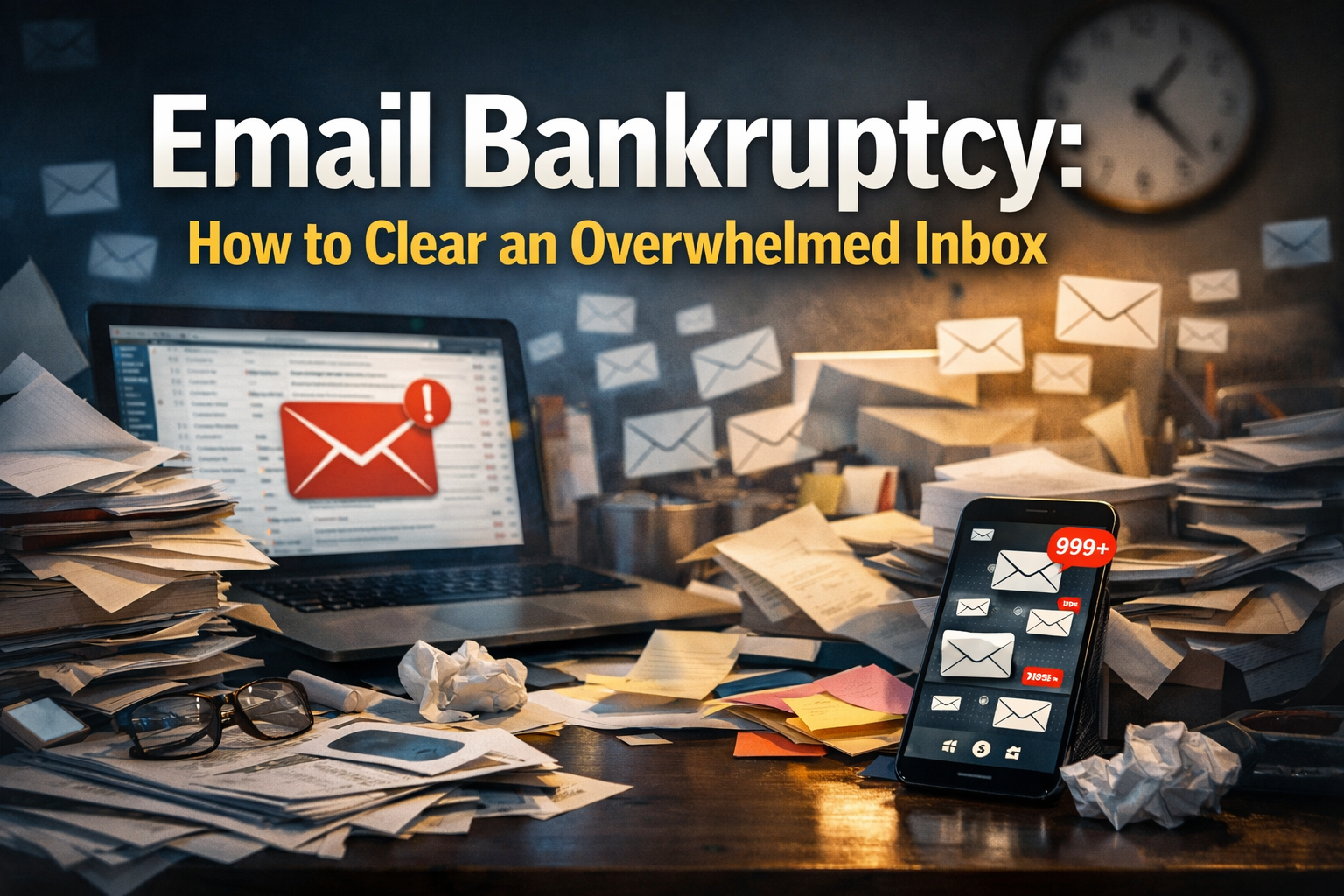

Opening your inbox to a staggering 1,000, 5,000, or even 10,000 unread emails can feel like staring into the abyss of digital despair. This common predicament, often dubbed "Email Bankruptcy," is more than just an inconvenience; it's a significant source of stress, missed opportunities, and reduced productivity. The sheer volume of unopened messages can paralyze individuals, making them feel like the task of clearing it is insurmountable. It's akin to being buried under a mountain of paperwork, where even knowing where to begin seems impossible. This comprehensive guide will equip you with effective strategies to declare Email Bankruptcy, clear an overwhelmed inbox, and reclaim your digital peace of mind in 2026 and beyond.
Key Takeaways
- Radical Action is Required: The most effective approach to Email Bankruptcy is a drastic, one-time clear-out, often involving archiving or deleting old emails en masse.
- Leverage Technology: Utilize email client features like filters, labels, and unsubscribe tools to automate organization and prevent future overload.
- Establish New Habits: Implement daily and weekly routines to process new emails efficiently, ensuring the inbox remains manageable.
- Prioritize Unsubscribing: Proactively remove yourself from unnecessary mailing lists to reduce incoming email volume permanently.
- Maintain Digital Hygiene: Regularly review and adjust your email management system to adapt to changing communication needs and maintain a clean inbox.
The "Archive All" Strategy (and why it's scary but safe)
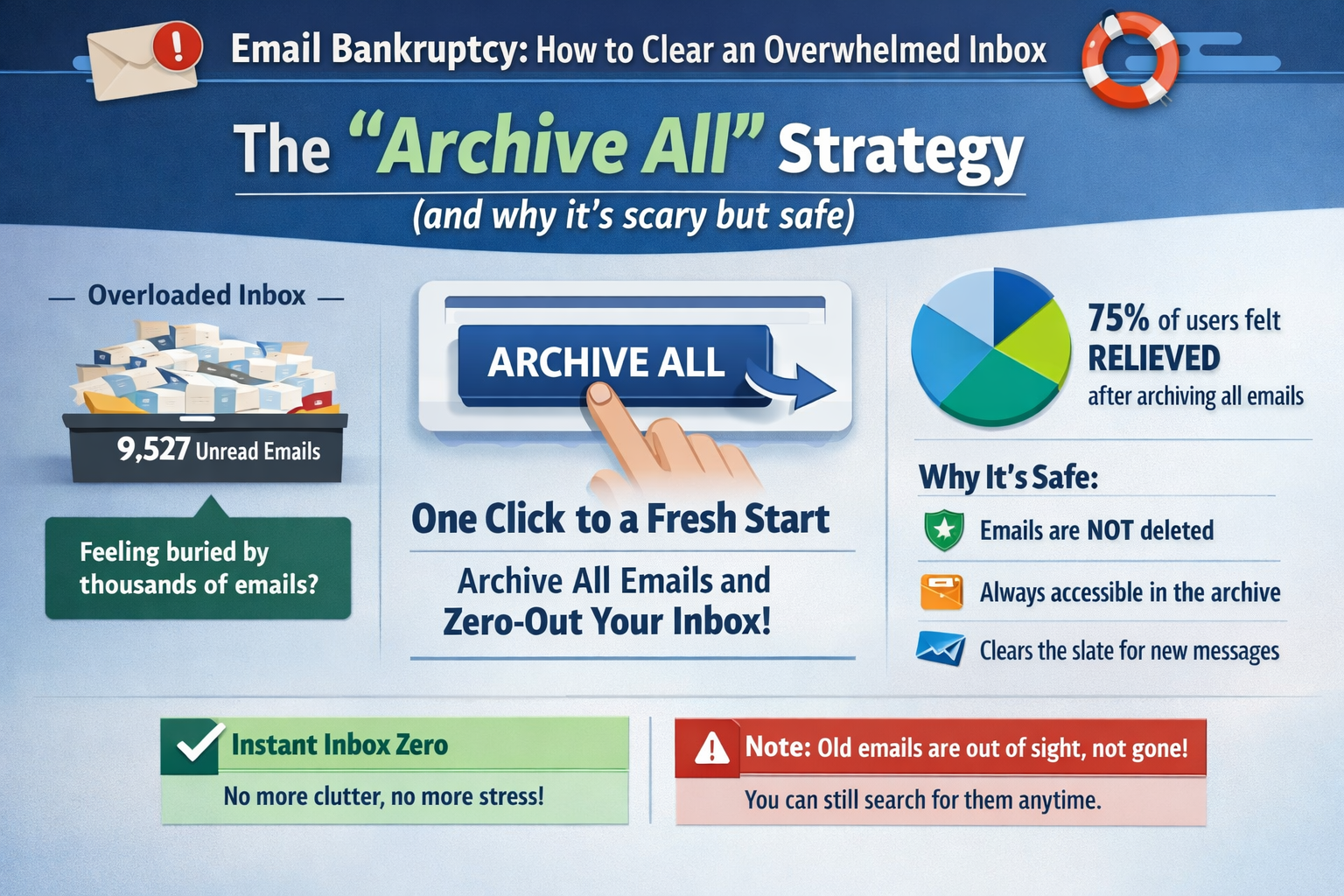
When facing the daunting prospect of thousands of unread emails, the most immediate and impactful solution is often the most radical: declaring "Email Bankruptcy: How to Clear an Overwhelmed Inbox" by moving everything out of your primary inbox. This is where the "Archive All" strategy comes into play. While the thought of archiving potentially important messages can be unsettling, it's a surprisingly safe and highly effective method to achieve instant relief and a clean slate.
The core principle behind "Archive All" is simple: remove all emails older than a certain date (e.g., three months, six months, or even a year) from your inbox and move them to an archive folder. This doesn't delete them; it merely moves them out of sight. Why is this safe? Modern email platforms offer robust search functionalities. Any email you archive can still be easily retrieved using keywords, sender names, or dates. It's like moving old files from your desk into a well-indexed filing cabinet. They're still there, just not cluttering your immediate workspace.
How to Execute the "Archive All" Strategy
The steps to implement this strategy vary slightly depending on your email client, but the general process is as follows:
- Assess Your Comfort Level: Decide how far back you want to clear. For many, anything older than 3-6 months is a safe bet, as truly urgent or actionable items would likely have been addressed by now.
- Select Emails:
- Gmail: In the search bar, type
before:YYYY/MM/DD(e.g.,before:2026/01/01to select all emails received before January 1, 2026). Then, click the "Select all conversations that match this search" option, and choose "Archive." - Outlook: Use the search bar to filter by date. You can also create a rule to move emails older than a certain period to an archive folder. Alternatively, select multiple emails by holding
ShiftorCtrl(orCmdon Mac) and then click "Archive." - Other Clients: Most email clients have similar search and bulk action capabilities. Consult your client's help section for specific instructions.
- Gmail: In the search bar, type
- Confirm the Archive: Double-check your selection before confirming the archive action. Remember, these emails are not being deleted permanently, just moved.
- Enjoy the Clean Slate: Witnessing an empty or near-empty inbox is incredibly liberating. This instant gratification is a powerful motivator for maintaining your newfound email hygiene.
The Psychological Benefits
The psychological impact of a cleared inbox cannot be overstated. The constant visual reminder of pending tasks and unaddressed communications creates a subtle but persistent layer of stress. By enacting Email Bankruptcy: How to Clear an Overwhelmed Inbox through an "Archive All" strategy, you:
- Reduce Cognitive Load: Fewer visible emails mean less mental clutter.
- Increase Focus: You can now focus on current, relevant communications without being distracted by old messages.
- Boost Productivity: The feeling of control over your inbox translates to increased efficiency in other areas.
- Break the Cycle: It provides a fresh starting point, making it easier to adopt new, better email habits.
This strategy is often the first, crucial step in reclaiming your digital life. For individuals managing demanding schedules, such as those considering 50000 fully funded Masters Scholarships in Canada 2026 Intake or 45000 PhD scholarships in Australia 2026 Fully Funded Stipend, maintaining a clean inbox is essential for managing academic communications effectively.
Setting up Filters and Labels Effectively
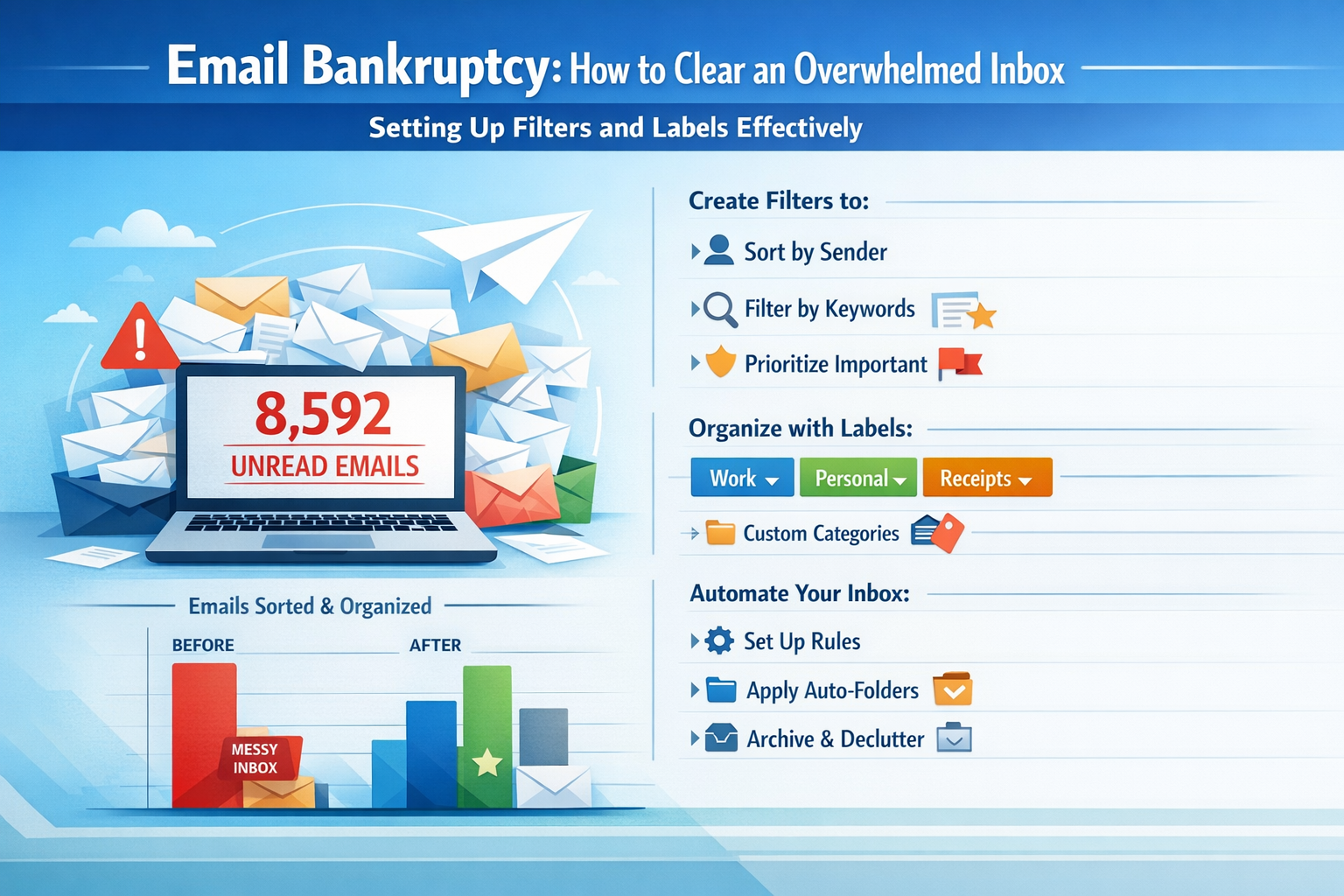
Once the initial shock treatment of "Archive All" has provided a clean slate, the next critical step in preventing future Email Bankruptcy: How to Clear an Overwhelmed Inbox is to implement robust organizational systems. Filters and labels (or folders, depending on your email client) are your best friends in this endeavor. They automate the sorting process, ensuring that new emails land exactly where they belong, keeping your primary inbox free from clutter.
Understanding Filters and Labels
- Filters (or Rules): These are automated actions that your email client performs on incoming messages based on specific criteria. For example, a filter can automatically move emails from a certain sender to a particular folder, mark them as read, or even delete them.
- Labels (or Folders): These are categories you create to organize your emails. Unlike physical folders, labels in many modern email clients (like Gmail) allow a single email to belong to multiple categories without duplicating the message, offering greater flexibility.
Crafting an Effective Filter and Label System
The goal is to minimize the number of emails that demand immediate attention in your primary inbox while ensuring important messages are easily accessible.
- Identify Key Categories: Start by thinking about the types of emails you receive regularly. Common categories include:
- Work-Related: Specific projects, clients, teams.
- Personal: Friends, family, personal appointments.
- Transactional: Receipts, shipping notifications, account updates.
- Newsletters/Promotions: Subscriptions you want to read later.
- Alerts: Social media notifications, system alerts.
- Financial: Bank statements, bills.
- Create Labels/Folders for Each Category: For example, you might create labels like:
- "Project X"
- "Client Y"
- "Family & Friends"
- "Shopping Receipts"
- "Read Later – Newsletters"
- "Bank Statements – 2026"
- Set Up Filters for Incoming Mail: This is where the magic happens. For each label, create one or more filters:
- Sender-Based Filters: If you consistently receive emails from a specific sender (e.g., your bank, a key colleague, a favorite newsletter), create a filter to automatically apply a label and move it out of your inbox. For example, emails from "Amazon" could go directly to a "Shopping Receipts" label.
- Subject-Based Filters: For emails with consistent subject lines (e.g., "Invoice from [Company Name]," "Weekly Digest"), use keywords in the subject to filter them.
- Keyword-Based Filters: If certain keywords appear in the body of emails that belong to a specific category (e.g., "meeting agenda" for a project folder), use these to filter.
- Never Send to Spam: For critical senders, set a filter to ensure their emails never get sent to your spam folder.
Pro-Tip: Many email clients allow you to apply filters retroactively, meaning you can organize existing emails that match your new rules.
Example Filter Table for a Busy Professional
| Criteria (Example) | Action | Label/Folder Applied | Notes |
|---|---|---|---|
From: *@clientdomain.com |
Skip Inbox, Mark as Read | Clients / [Client Name] |
Important for client-facing roles, keeping the inbox clear of routine updates. |
Subject: Daily Briefing |
Skip Inbox, Mark as Read | Internal / Daily Briefing |
Internal communications that don't require immediate action but need to be accessible. |
From: newsletter@domain.com |
Skip Inbox | Reading / Newsletters |
For subscriptions you want to review during dedicated reading time. This frees your primary inbox. |
Subject: Invoice # |
Skip Inbox | Financial / Invoices - 2026 |
Helps track and retrieve financial documents. For those interested in managing finances for international opportunities, clear records are key for applications such as the Canada Job Seeker Visa in 2026. |
From: *@socialmedia.com |
Delete Automatically (or Skip Inbox if you want to review periodically) | N/A |
Social media notifications are often distracting and rarely urgent. |
Contains: Urgent in subject |
Star, Never send to Spam | Inbox (or Urgent Matters) |
Ensures critical emails are highlighted and not missed. |
By thoughtfully setting up these filters and labels, you essentially create a personal email assistant that sorts your mail before you even see it. This dramatically reduces the volume in your primary inbox, allowing you to focus on only the most critical communications and further cementing your victory over Email Bankruptcy: How to Clear an Overwhelmed Inbox.
The "Unsubscribe" Spree: Tools to Automate It
After the initial clear-out and setting up filters, the final, crucial step to maintain a clean inbox and truly overcome Email Bankruptcy: How to Clear an Overwhelmed Inbox, is to stem the flow of new, unwanted emails at its source. This means embarking on an "Unsubscribe" spree. While filters can route newsletters away from your main inbox, actually removing yourself from mailing lists you no longer read or need is far more effective. It reduces server load, improves privacy, and most importantly, minimizes the sheer volume of emails you receive daily.
Why Unsubscribe is Critical
Many people hesitate to unsubscribe, thinking it's too much effort or that the emails will stop coming eventually. However, merely filtering unwanted emails moves them out of sight; it doesn't stop them from arriving. Over time, these filtered emails can still accumulate in their designated folders, making search results cluttered and potentially slowing down your email client. A true declaration of Email Bankruptcy includes a commitment to stop receiving unnecessary communications.
Manual Unsubscribing: The Traditional Method
Every legitimate marketing email is legally required to include an "unsubscribe" link, usually found at the very bottom of the email in small print. While this method is effective, it can be incredibly time-consuming if you have hundreds of subscriptions. You'd need to:
- Open each unwanted email.
- Scroll to the bottom.
- Click the "Unsubscribe" link.
- Often, confirm your decision on a web page.
- Repeat ad nauseam.
This manual process is tedious and a major barrier for many, which is why automated tools have become indispensable.
Leveraging Automation Tools for Unsubscribing
Fortunately, several excellent tools and services can significantly streamline the unsubscribe process. These tools typically scan your inbox, identify mailing lists, and allow you to unsubscribe from multiple sources with just a few clicks.
1. Unroll.Me
- Functionality: Unroll.Me is one of the most popular tools for managing email subscriptions. It scans your inbox, identifies all your mailing lists, and presents them in a clean, categorized list. You can then quickly unsubscribe from unwanted lists or "roll up" desirable newsletters into a single daily digest email.
- Pros: User-friendly interface, effective batch unsubscribing, and the "Rollup" feature for consolidating newsletters.
- Considerations: Requires access to your email account. Users should be aware of its business model (anonymized data collection for market research), though it has updated its privacy policies over time.
2. Clean Email
- Functionality: Clean Email offers robust features beyond just unsubscribing. It identifies newsletters, social notifications, and other email categories, allowing you to unsubscribe, block, move, or even delete entire groups of emails with a single click. It also provides an "Auto Clean" feature for recurring actions.
- Pros: Powerful filtering and automation capabilities, good for deep cleaning, and more privacy-focused than some competitors.
- Considerations: Offers a free trial with limited features; full functionality requires a subscription.
3. Leave Me Alone
- Functionality: This tool focuses specifically on discovering and unsubscribing from mailing lists. It connects to your email account, scans for subscriptions, and provides a clear interface to unsubscribe or keep subscriptions.
- Pros: Simple, straightforward, and effective for its core purpose. Emphasizes privacy.
- Considerations: Primarily a paid service after a few free unsubscribes.
4. Your Email Client's Built-in Features
Many modern email clients, including Gmail and Outlook, are improving their built-in unsubscribe functionalities:
- Gmail: Often shows an "Unsubscribe" button right next to the sender's email address at the top of a marketing email, making it very easy to click.
- Outlook: Similarly, Outlook.com often identifies newsletters and offers an "Unsubscribe" option in the header or context menu.
Best Practices for Your Unsubscribe Spree
- Dedicate Time: Set aside 30-60 minutes specifically for this task. It's a one-time effort that yields long-term benefits.
- Be Ruthless: If you haven't opened an email from a sender in weeks or months, or if the content no longer serves you, unsubscribe. Don't feel guilty.
- Consider "Rollup" for Valued Newsletters: If you like some newsletters but don't want them cluttering your inbox daily, use a service like Unroll.Me to consolidate them into a single digest.
- Review Periodically: Make unsubscribing a habit. Every few months, quickly scan your inbox for new subscriptions you no longer need and remove them. This proactive approach supports ongoing email hygiene, much like maintaining updated documents for opportunities like 62000 Caregiver Jobs in Canada with Visa Sponsorship or 60000 Hotel Jobs with Visa Sponsorship in the UAE.
By combining the "Archive All" strategy, effective filtering, and a thorough unsubscribe spree, you can move from a state of Email Bankruptcy: How to Clear an Overwhelmed Inbox to one of complete control and calm. This three-pronged attack addresses the past, manages the present, and prevents future overwhelm, making your inbox a tool of productivity rather than a source of anxiety.
Conclusion: Reclaiming Your Morning from Email Anxiety
Emerging from the depths of Email Bankruptcy: How to Clear an Overwhelmed Inbox is not merely about achieving inbox zero; it's about reclaiming your mental space, reducing stress, and boosting overall productivity. The journey begins with a courageous, decisive act – the "Archive All" strategy – which provides immediate relief and a fresh start. This radical initial step, while daunting, is essential for breaking the cycle of overwhelm.
Following this, establishing a robust system of filters and labels transforms your email client into a disciplined assistant, automatically sorting incoming messages and ensuring that your primary inbox remains a sanctuary for only the most critical communications. This proactive organization prevents future accumulation and empowers you to manage information effectively rather than being swamped by it.
Finally, the diligent "Unsubscribe" spree, ideally supported by automation tools, strikes at the root cause of email overload. By consciously opting out of unnecessary mailing lists, you significantly reduce the volume of incoming mail, making your inbox a quieter, more focused environment.
The cumulative effect of these strategies is profound. Imagine starting your day in 2026 not with a jolt of anxiety at the sight of hundreds of unread emails, but with a clear, manageable inbox, ready for purposeful action. This shift allows you to dedicate your precious morning hours to high-value tasks, strategic planning, or personal well-being, rather than sifting through digital clutter.
Actionable Next Steps:
- Commit to "Archive All": Pick a date (e.g., all emails before July 1, 2026) and execute the "Archive All" strategy this week.
- Design Your System: Spend an hour outlining your ideal labels/folders and then create the corresponding filters in your email client.
- Launch Your Unsubscribe Spree: Utilize an automation tool like Unroll.Me or Clean Email, or dedicate time to manually unsubscribe from at least 10-15 unwanted mailing lists each day until you've cleared most of them.
- Adopt the "Two-Minute Rule": For new emails, if you can deal with it in two minutes or less, do it immediately. Otherwise, categorize it or add it to a to-do list.
- Schedule Email Time: Dedicate specific times during your day to check and process emails, rather than leaving your inbox open constantly. This reduces interruptions and improves focus.
By embracing these practices, you can permanently escape the clutches of email anxiety and transform your inbox into a powerful, efficient communication tool, allowing you to focus on what truly matters in your professional and personal life.