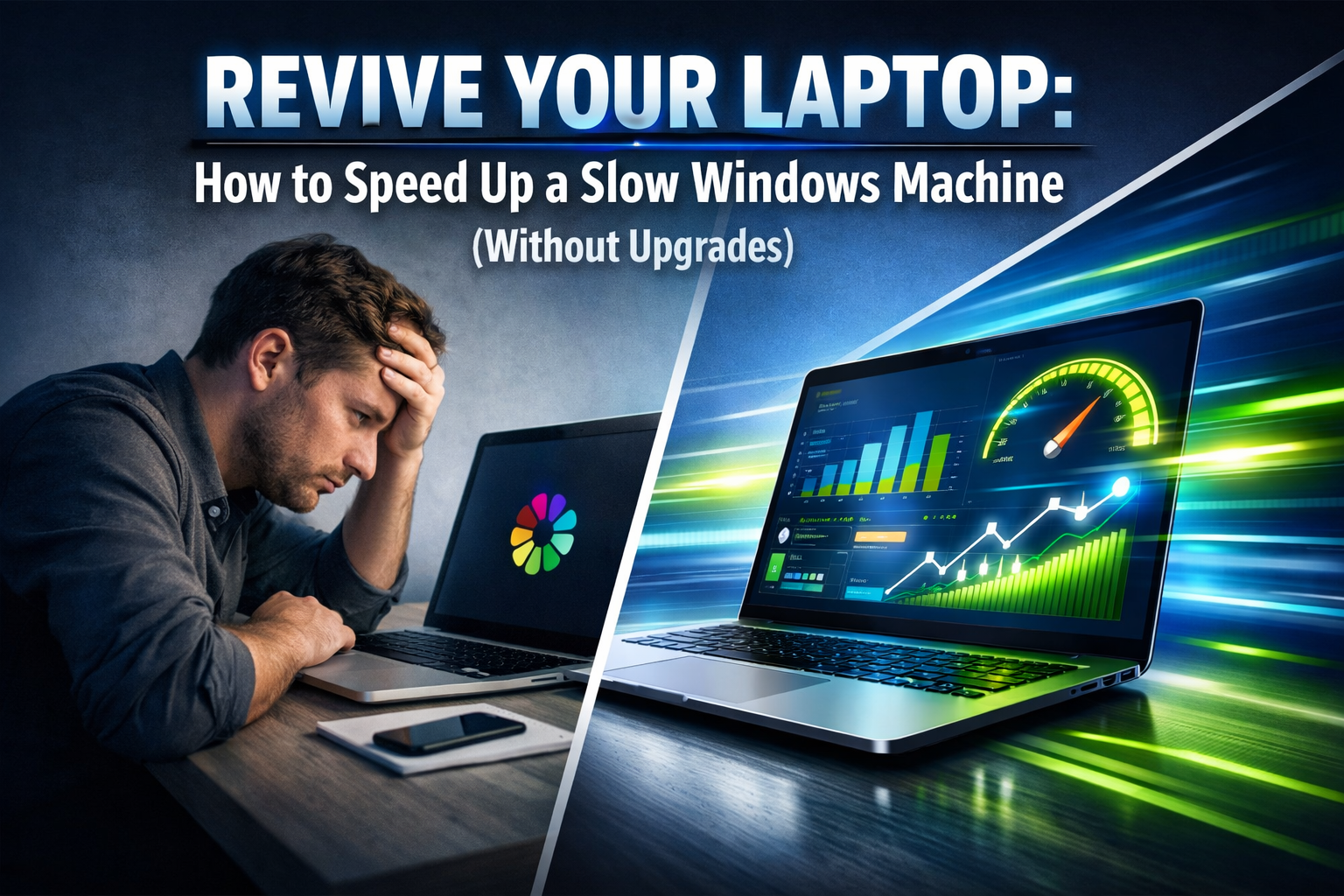

A lagging computer kills momentum. Few things are as frustrating as a Windows laptop that crawls when you need it to sprint, especially when deadlines loom or you're trying to enjoy some downtime. The good news is that you don't always need to invest in expensive hardware upgrades to breathe new life into an aging machine. In 2026, many effective strategies exist to significantly improve your laptop's performance by optimizing its software and how you use it. This comprehensive guide will walk you through practical, actionable steps on how to speed up a slow Windows laptop (without buying new parts), helping you reclaim your productivity and enjoyment.
Key Takeaways
- Manage Startup Programs: Prevent unnecessary applications from launching automatically to drastically reduce boot times and free up system resources immediately.
- Declutter Disk Space: Regularly remove temporary files, old downloads, and unused programs to ensure your hard drive isn't a bottleneck.
- Scan for Malware: Malicious software can severely impact performance; routine scans are crucial for maintaining system health.
- Optimize System Settings: Adjust visual effects, power plans, and background processes to prioritize performance over aesthetics or battery life.
- Maintain Regularly: Implement a routine maintenance schedule to keep your laptop running smoothly, preventing future slowdowns.
Disabling Startup Apps (Step-by-step)
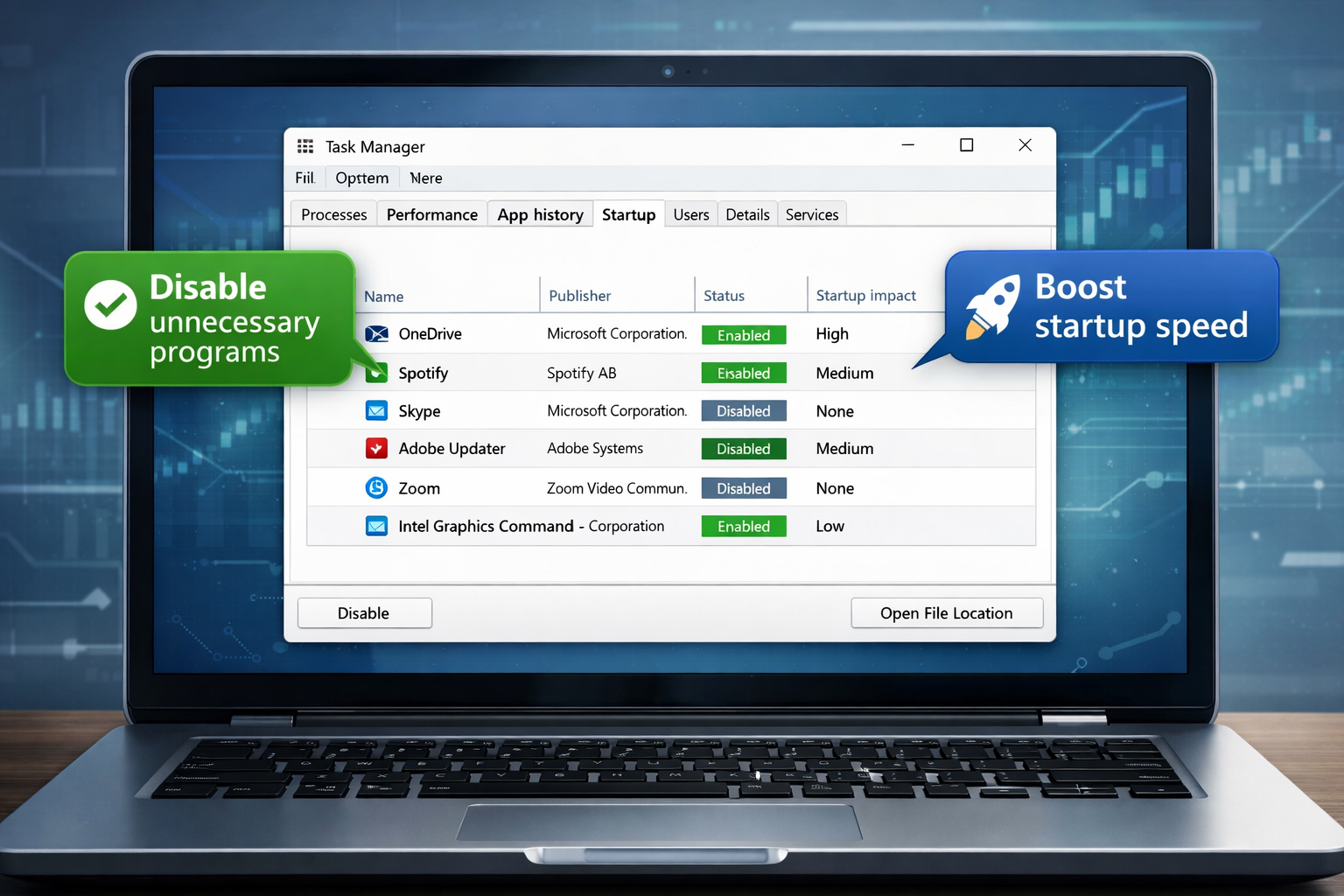
One of the most common culprits behind a slow Windows laptop, particularly during startup, is an excessive number of programs launching automatically. Each application that starts with Windows consumes precious RAM and CPU cycles, delaying your ability to use your computer efficiently. Learning how to manage these startup programs is a fundamental step in how to speed up a slow Windows laptop (without buying new parts).
Why Startup Apps Slow You Down
When you turn on your laptop, Windows tries to load everything it needs, plus any applications set to launch automatically. Over time, as you install more software, many programs quietly add themselves to this startup list. While some, like antivirus software, are essential, others merely sit in the background, consuming resources without providing immediate value.
How to Disable Startup Apps
Here’s a clear, step-by-step guide to take control of your startup applications:
-
Open Task Manager:
- Right-click on an empty area of your Taskbar.
- Select "Task Manager" from the context menu.
- Alternatively, press
Ctrl + Shift + Escon your keyboard.
-
Navigate to the Startup Tab:
- In the Task Manager window, click on the "Startup" tab at the top. If you don't see tabs, click "More details" at the bottom left.
-
Identify Resource Hogs:
- You'll see a list of applications that launch with your system.
- Pay attention to the "Startup impact" column. This indicates how much each program affects your startup speed (e.g., "High," "Medium," "Low," or "Not measured").
- Also, consider programs you rarely use or don't need running constantly. Common culprits include communication apps, cloud storage clients (unless you need instant sync), and various utility software.
💡 Pro Tip: If you're unsure what a program does, you can right-click on it and choose "Search online" to find more information before disabling it.
-
Disable Unnecessary Programs:
- Click on the program you want to disable.
- Click the "Disable" button in the bottom-right corner of the Task Manager window. The "Status" column for that program will change from "Enabled" to "Disabled."
Table: Common Startup Programs to Consider Disabling
| Program Type | Example Applications | Why Disable? |
|---|---|---|
| Cloud Storage Clients | Dropbox, Google Drive, OneDrive | Only run when you need to sync; can manually open. |
| Communication Apps | Discord, Skype, Microsoft Teams | Can be opened manually when needed, reduces background resource use. |
| Update Services | Adobe Updater, Java Updater | These often run in the background; updates can be checked manually. |
| Manufacturer Utilities | Dell SupportAssist, HP Smart | Often provide monitoring or maintenance that isn't always essential at startup. |
| Gaming Launchers | Steam, Epic Games Launcher | Only needed when you intend to play games. |
After disabling unnecessary startup programs, restart your laptop to observe the improvements. You should notice a quicker boot time and potentially a snappier response from your system. This simple yet powerful tweak is often the first and most impactful step in enhancing your laptop's performance without hardware changes.
Cleaning up disk space and temporary files
Another significant contributor to a slow Windows laptop is a cluttered hard drive. When your disk space runs low, or when it's filled with fragmented and unnecessary files, your operating system struggles to find and write data efficiently. Regularly cleaning up disk space and temporary files is a crucial strategy for how to speed up a slow Windows laptop (without buying new parts).
The Impact of Disk Clutter
Think of your hard drive as a filing cabinet. If it's overflowing with disorganized papers, finding what you need takes much longer. Similarly, a computer with a full or fragmented hard drive will take longer to open programs, save files, and even boot up. Temporary files, old system updates, cached data, and large downloads can accumulate quickly, silently consuming gigabytes of storage.
How to Clean Up Your Disk
Windows provides several built-in tools to help you manage your disk space effectively.
-
Disk Cleanup Utility:
- Type "Disk Cleanup" into the Windows search bar and select the app that appears.
- Choose the drive you want to clean (usually C:).
- The utility will scan for various types of files you can delete. This includes:
- Temporary Internet Files: Browser caches.
- Recycle Bin: Deleted files still taking up space.
- Temporary files: Files created by programs that are no longer needed.
- Downloads folder: Often forgotten large files.
- Windows Update Cleanup: Old system update files that are no longer required. This can free up significant space!
- Click "Clean up system files" to scan for even more files, including old Windows installations or previous update backups. This is where you can often reclaim many gigabytes.
- Check the boxes next to the file types you wish to delete and click "OK." Confirm your action when prompted.
-
Uninstall Unused Programs:
- Go to
Settings > Apps > Apps & features. - Scroll through the list of installed applications.
- Identify programs you no longer use or don't recognize.
- Click on an unwanted app and select "Uninstall."
- Be cautious: only uninstall programs you are certain you don't need.
⚠️ Caution: Always double-check before uninstalling system-critical software. If unsure, search online for the program's purpose.
- Go to
-
Delete Large, Unnecessary Files Manually:
- Your "Downloads" folder is a frequent culprit for large, forgotten files. Review it regularly and delete anything you don't need.
- Use File Explorer to check other folders where you might save large media files or installers. Sort by "Size" to quickly identify the biggest files.
-
Empty the Recycle Bin:
- Even after deleting files, they sit in the Recycle Bin, still consuming disk space.
- Right-click on the Recycle Bin icon on your desktop and select "Empty Recycle Bin."
Optimizing Storage Settings
Windows 10 and 11 offer a feature called Storage Sense that can automate some of these cleanup tasks.
- Go to
Settings > System > Storage. - Toggle "Storage Sense" to "On."
- Click "Configure Storage Sense or run it now" to customize how it works. You can set it to automatically delete temporary files, old downloads, and files in your Recycle Bin after a certain period. This is an excellent way to maintain a clean system proactively.
By regularly performing these cleanup tasks, you ensure your hard drive has ample space to operate efficiently, significantly contributing to a faster, more responsive Windows laptop. This is a simple, yet profoundly effective, method for optimizing your machine without spending a dime.
Checking for Malware that slows you down
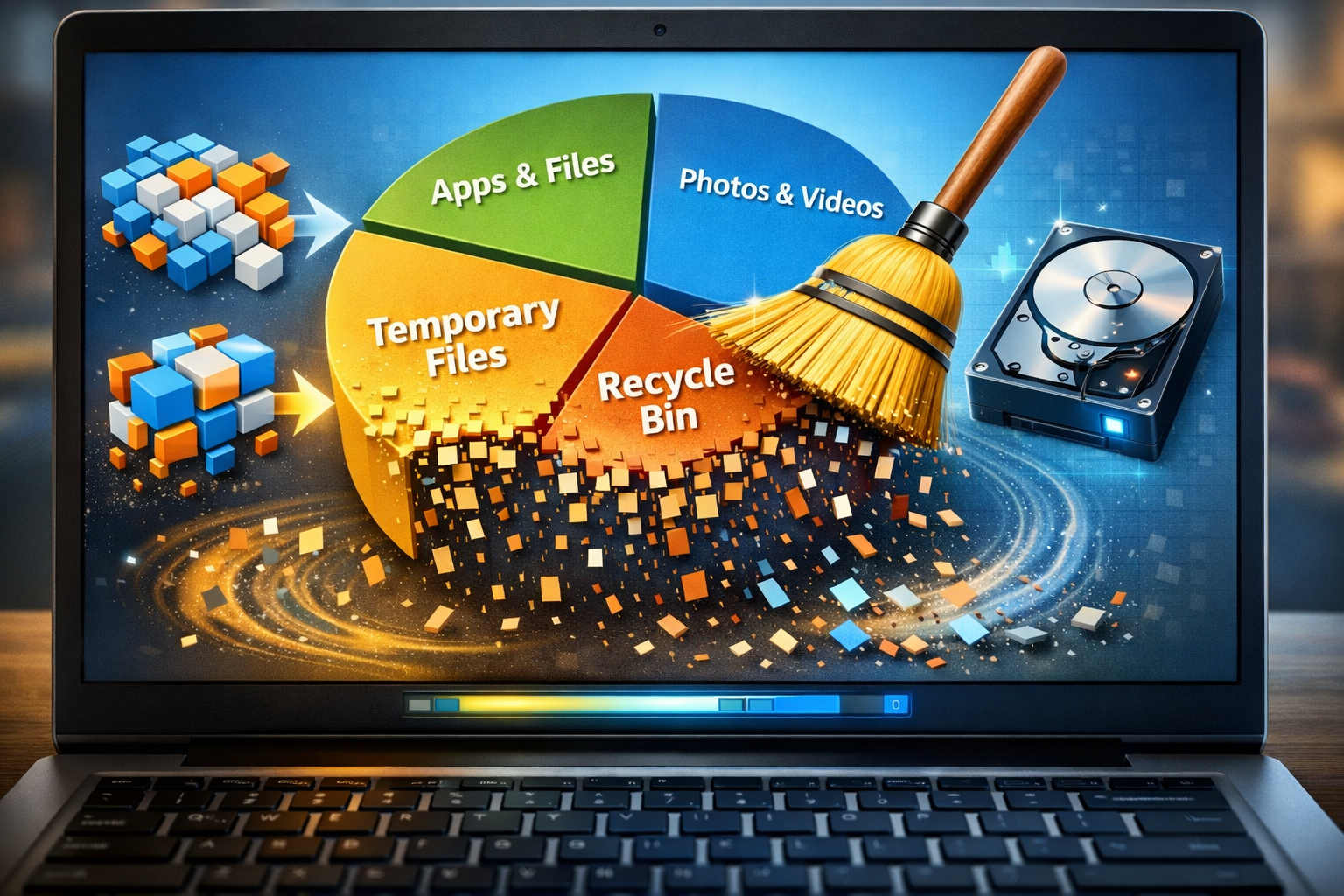
Even after optimizing startup programs and cleaning up disk space, your Windows laptop might still be sluggish. A common, insidious cause of poor performance is malware – malicious software designed to disrupt computer operation, gather sensitive information, or gain unauthorized access. Detecting and removing malware is a critical step in how to speed up a slow Windows laptop (without buying new parts).
How Malware Impacts Performance
Malware can manifest in many forms, from viruses and spyware to adware and ransomware. Each type can impact your laptop's performance differently:
- Excessive Resource Usage: Many malware programs run silently in the background, consuming significant CPU, RAM, and network bandwidth. This leaves fewer resources for legitimate applications.
- System Instability: Malware can corrupt system files, leading to crashes, freezes, and general unresponsiveness.
- Intrusive Ads: Adware can flood your browser with pop-ups and unwanted redirects, making browsing unbearable and consuming system resources.
- Background Processes: Spyware might constantly transmit data, using up network resources and processor cycles.
Steps to Check and Remove Malware
Implementing robust security measures and running regular scans is essential.
-
Run a Full Scan with Windows Security (Windows Defender):
- Windows Security (formerly Windows Defender) is Microsoft's built-in antivirus solution and is surprisingly capable in 2026.
- Type "Windows Security" into the search bar and open the app.
- Go to "Virus & threat protection."
- Click on "Scan options."
- Select "Full scan" and then click "Scan now."
- A full scan can take several hours, but it checks every file and running program on your system. It's best to run this when you don't need your laptop for intensive tasks.
-
Use a Reputable Third-Party Anti-Malware Tool:
- While Windows Security is good, supplementing it with a second opinion scanner can catch things it might miss.
- Consider free tools like Malwarebytes Free or ESET Online Scanner. These are often excellent for detecting adware, spyware, and potentially unwanted programs (PUPs) that traditional antivirus might overlook.
- Download and install the free version, update its definitions, and then run a full scan.
- Always download software directly from the developer's official website to avoid malicious imitators.
-
Check Browser Extensions:
- Malicious extensions are a common way for adware and spyware to infiltrate your system.
- Open your browser (Chrome, Edge, Firefox).
- Go to the extensions management page (usually found in the browser's menu under "Extensions" or "Add-ons").
- Review all installed extensions. If you don't recognize an extension or don't remember installing it, disable or remove it.
- Be particularly wary of extensions that promise to speed up your browser or offer dubious "free" services.
-
Review Installed Programs (Again):
- Go back to
Settings > Apps > Apps & features. - Look for any unfamiliar programs that may have been installed without your explicit consent. Malware often bundles itself with legitimate software installers.
- If you find suspicious programs, uninstall them.
- Go back to
-
Clean Your Browser Cache and Data:
- Malware can leave traces in your browser. Clearing your browser's cache, cookies, and site data can help remove persistent issues.
- In most browsers, this option is found in
Settings > Privacy and securityorHistory.
Maintaining a Secure and Fast System
- Keep Software Updated: Ensure your Windows operating system, web browser, and all applications are kept up-to-date. Updates often include security patches that protect against new threats.
- Be Wary of Downloads: Only download files from trusted sources. Be cautious of email attachments from unknown senders or suspicious links.
- Use a Firewall: Windows Security includes a firewall that should always be enabled to protect against unauthorized network access.
By regularly scanning for malware and practicing safe computing habits, you can significantly reduce the risk of infection, ensuring your laptop remains fast and responsive. This proactive approach is fundamental to long-term performance without needing new hardware. Learn more about staying safe online and securing your digital assets, which is critical in an increasingly connected world, by understanding topics like relocating to the UK with your family via a skilled worker visa which emphasizes digital safety during major life changes. Similarly, those considering 45,000 PhD scholarships in Australia for 2026 should also prioritize laptop security for academic success.
Advanced Optimization Techniques for How to Speed Up a Slow Windows Laptop (Without buying new parts)
Beyond the foundational steps, several other system tweaks can further enhance your laptop's performance. These adjustments are often less about cleaning and more about configuring Windows to prioritize speed.
-
Adjust Visual Effects for Performance:
- Windows offers many visual flourishes like animations, fading effects, and shadows that can consume resources, especially on older hardware.
- Type "adjust the appearance and performance of Windows" into the search bar and open the relevant control panel option.
- In the "Performance Options" window, select "Adjust for best performance." This will disable most visual effects.
- Alternatively, you can select "Custom" and manually uncheck specific effects you don't need while keeping those you prefer.
-
Manage Background Apps:
- Some Windows Store apps can run in the background, consuming battery and system resources even when you're not actively using them.
- Go to
Settings > Privacy > Background apps. - You can either toggle "Let apps run in the background" off entirely or go through the list and disable individual apps you don't want running in the background.
-
Optimize Power Plan Settings:
- Your laptop's power plan can significantly impact performance. While "Balanced" is common, "High performance" can provide a noticeable speed boost, though it might use more battery.
- Type "Choose a power plan" into the search bar.
- Select "High performance" if available. If not, you might need to click "Show additional plans."
- You can also click "Change plan settings" and then "Change advanced power settings" to fine-tune various aspects, ensuring your CPU isn't throttled unnecessarily.
-
Defragment Your Hard Drive (for HDDs only):
- If your laptop still uses a traditional Hard Disk Drive (HDD), fragmentation can slow it down. Files become scattered across the disk, making retrieval slower.
- Type "Defragment and Optimize Drives" into the search bar.
- Select your primary drive (usually C:).
- Click "Optimize."
- Important: If your laptop has a Solid State Drive (SSD), do not defragment it. SSDs work differently and defragmentation is unnecessary and can reduce their lifespan. Windows automatically recognizes SSDs and performs TRIM optimization instead.
-
Update Device Drivers:
- Outdated drivers for your graphics card, network adapter, or other components can lead to performance issues or instability.
- Windows Update often handles driver updates, but sometimes you might need to check manually.
- Type "Device Manager" into the search bar.
- Expand categories (e.g., "Display adapters," "Network adapters").
- Right-click on a device and select "Update driver." You can choose to search automatically or browse your computer for driver software if you've downloaded it from the manufacturer's website.
- Visiting your laptop manufacturer's website (e.g., Dell, HP, Lenovo) and downloading the latest drivers directly is often the best approach for critical components like graphics.
-
Use ReadyBoost (with a USB Flash Drive):
- For laptops with limited RAM, Windows ReadyBoost can use a fast USB flash drive (or SD card) to act as additional RAM (cache). This can help speed up tasks by reducing the need to access the slower hard drive.
- Insert a fast USB drive (at least 2GB, up to 32GB recommended for best results).
- Right-click on the USB drive in File Explorer, select "Properties," and go to the "ReadyBoost" tab.
- Select "Use this device" and choose how much space you want to allocate.
- This is generally more effective for systems with less than 4GB of RAM and traditional HDDs.
-
Reset Your PC (as a last resort):
- If all else fails, and your laptop is still painfully slow, a "Reset this PC" operation can often restore it to a like-new state. This is an extreme measure but often highly effective in completely removing software clutter and conflicts.
- Go to
Settings > System > Recovery. - Under "Recovery options," click "Get started" next to "Reset this PC."
- You'll be given options to "Keep my files" (removes apps and settings, but keeps personal files) or "Remove everything" (a clean slate, requiring a reinstall of all your applications).
- Always back up important data before performing a PC reset, even if you choose to keep your files.
These advanced techniques, combined with diligent maintenance, provide a comprehensive approach to making your Windows laptop feel new again, all without the expense of new hardware. For those embarking on new journeys, like exploring 60,000 STEM scholarships in the USA for 2026 or considering Canada Job Seeker Visas in 2026, ensuring your laptop runs optimally is essential for research, applications, and staying connected. Similarly, if you're looking into 25,000 undergraduate scholarships in Australia, a fast and reliable laptop will be a key tool for your academic success.
Conclusion: Routine maintenance schedule
Improving the performance of a slow Windows laptop without buying new parts is not a one-time fix but rather an ongoing commitment to good digital hygiene. By diligently following the steps outlined in this guide—managing startup applications, cleaning disk space, removing malware, and optimizing system settings—you can significantly enhance your laptop's speed and responsiveness. These practices not only rejuvenate your current machine but also extend its usable life, saving you money and frustration.
The key to long-term performance lies in establishing a routine maintenance schedule. Consider dedicating a few minutes each week or month to these essential tasks:
- Weekly:
- Empty the Recycle Bin.
- Run a quick scan with Windows Security.
- Review your browser extensions and clear browsing data.
- Monthly:
- Run Disk Cleanup, including cleaning up system files.
- Check for and uninstall unused applications.
- Review your startup programs.
- Run a full scan with your chosen anti-malware tool.
- Check for and install any pending Windows Updates and critical driver updates.
- (For HDDs only) Defragment your hard drive.
By making these tasks a regular part of your computer usage, you'll proactively prevent slowdowns and maintain a consistently fast and efficient Windows laptop. A well-maintained laptop is a productive laptop, ready to handle the demands of 2026 and beyond. This approach is similar to how individuals seeking opportunities like 62,000 caregiver jobs in Canada with visa sponsorship must consistently update their skills and documentation to stay competitive. Similarly, those considering 65,000 cleaning supervisor jobs with visa sponsorship in Ireland understand that regular, thorough work yields the best results.
SEO Meta Title: Speed Up Slow Windows Laptop (No New Parts) 2026
SEO Meta Description: Learn how to speed up a slow Windows laptop in 2026 without buying new parts. Optimize startup, clean disk space, remove malware, and boost performance.