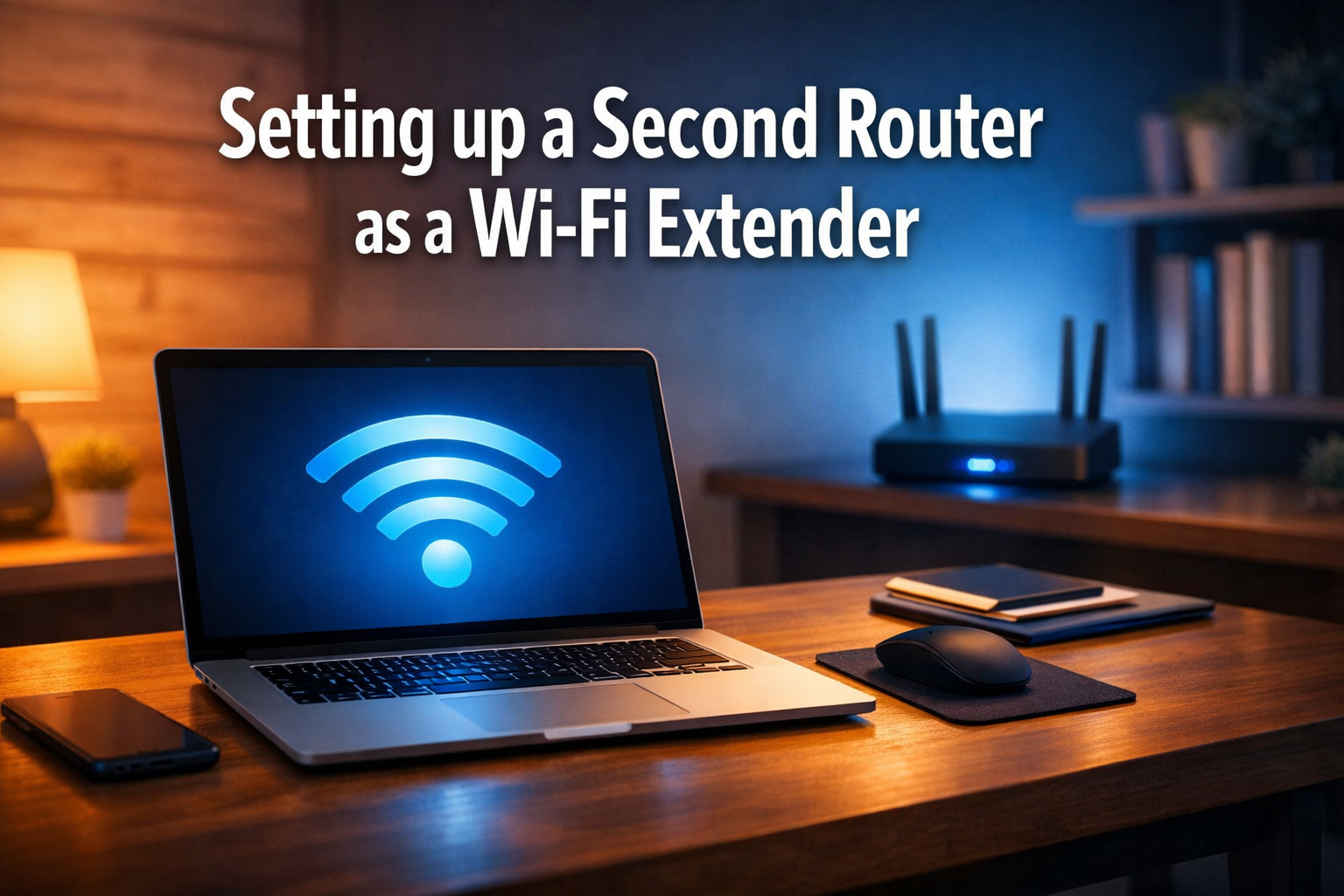

Are you tired of Wi-Fi dead zones disrupting your work calls or streaming marathons in your home office? In 2026, a strong, reliable internet connection is no longer a luxury but a necessity. Many households grapple with inconsistent Wi-Fi coverage, leading to frustrating slowdowns and dropped connections. Before you rush out to buy an expensive new system, consider a smart and often free solution: setting up a second router as a Wi-Fi extender. This comprehensive guide will walk you through how to repurpose an old or spare router to boost your signal, turning those frustrating dead zones into areas of strong, stable connectivity.
Key Takeaways
- Cost-Effective Solution: Repurpose an old router to save money on new Wi-Fi extenders or mesh systems.
- Improved Coverage: Eliminate Wi-Fi dead zones and extend your network's reach throughout your home or office.
- Two Main Methods: Utilize either Repeater Mode (wireless) or Access Point Mode (wired) depending on your router's capabilities and desired setup.
- Strategic Placement is Key: Proper positioning of the extended router is crucial for maximizing signal strength and minimizing interference.
- Environmentally Friendly: Giving a second life to electronic devices like old routers helps reduce e-waste.
The Difference Between Mesh and Extenders
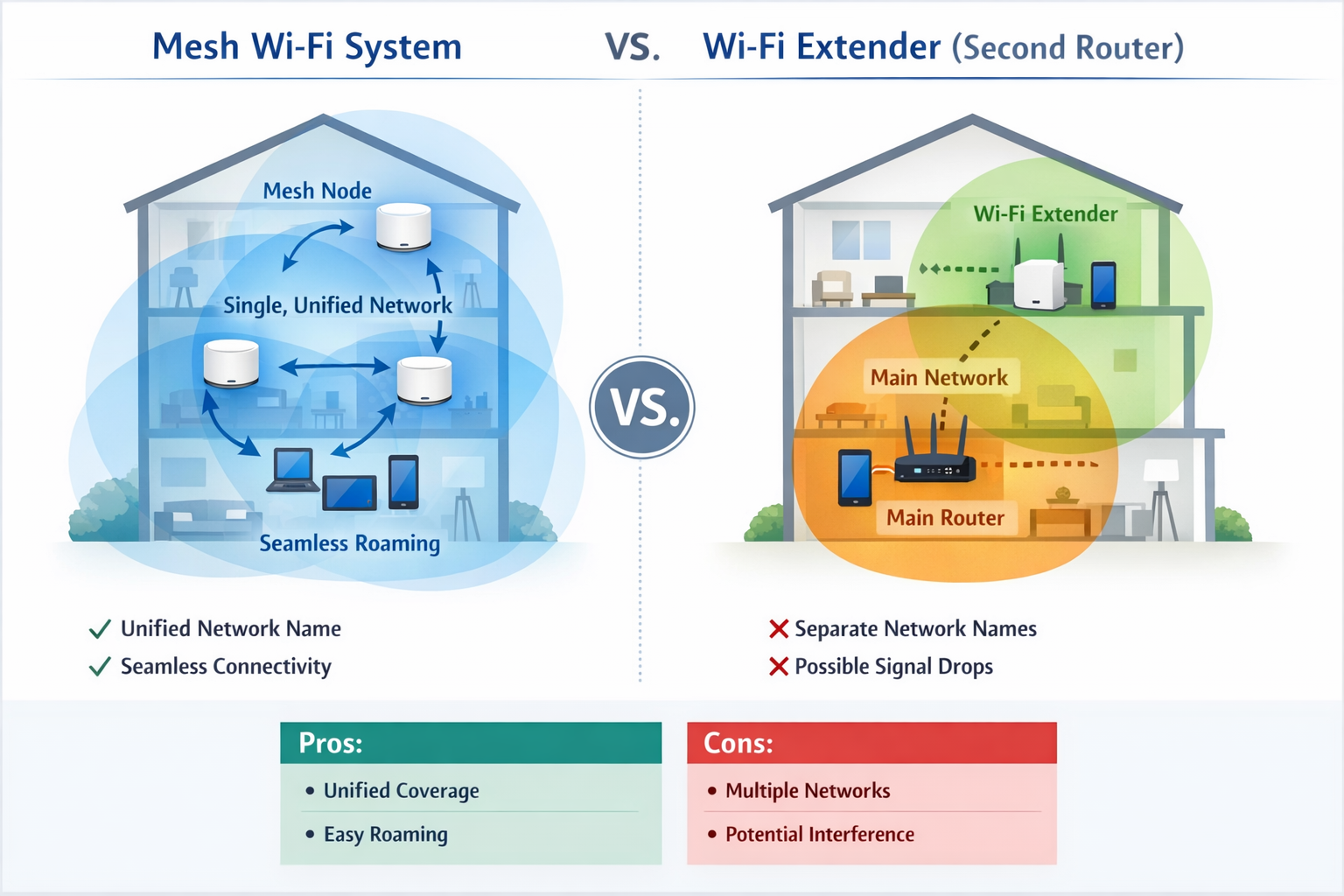
Before diving into the setup process for setting up a second router as a Wi-Fi extender, it is crucial to understand the distinct approaches to extending Wi-Fi coverage. The two primary methods are Mesh Wi-Fi systems and Wi-Fi Extenders (which include using a second router as one). Understanding their differences will help you choose the best solution for your specific needs.
Mesh Wi-Fi Systems:
Mesh systems are designed to provide seamless Wi-Fi coverage across large areas by using multiple access points, or "nodes," that communicate with each other to form a single, unified network.
- Unified Network: All nodes share the same network name (SSID) and password. Your devices automatically connect to the strongest signal as you move around, without needing to manually switch networks.
- Intelligent Roaming: Mesh systems often employ smart technology to optimize connections, ensuring devices always have the best possible signal.
- Scalability: You can easily add more nodes to expand coverage further.
- Higher Cost: Generally more expensive than a single router and extender combination.
- Simplicity: Typically very easy to set up and manage via a mobile app.
- Examples: Popular brands include Google Nest Wifi, Eero, and Netgear Orbi.
Wi-Fi Extenders (including a second router as an extender):
Wi-Fi extenders, also known as repeaters, work by taking an existing Wi-Fi signal from your main router and rebroadcasting it. When you are setting up a second router as a Wi-Fi extender, you are essentially configuring it to perform this same function.
- Separate Network (Often): Traditional extenders often create a new network name (e.g., "YourNetwork_EXT") or simply repeat the existing one with a weaker signal. Devices may need to manually switch between the main router and the extender.
- Signal Degradation: Because an extender must receive and then re-broadcast the signal wirelessly, there can be a 50% speed reduction for devices connected to the extender, as it dedicates half its bandwidth to communicating with the main router and the other half to connected devices.
- Cost-Effective: Dedicated extenders are relatively inexpensive, and repurposing an old router can be entirely free.
- Placement Sensitivity: Proper placement is critical to ensure the extender receives a strong enough signal from the main router to effectively re-broadcast it.
- Modes of Operation:
- Repeater Mode (Wireless): The extender connects wirelessly to the main router and re-broadcasts the signal. This is the simplest setup but can suffer from signal degradation.
- Access Point (AP) Mode (Wired): The second router is connected via an Ethernet cable to the main router. This creates a new Wi-Fi hotspot with its own SSID and password, offering much faster and more stable speeds because the backhaul connection is wired. This is often the preferred method for performance.
- Suitability: Ideal for covering smaller dead zones or extending coverage to a specific area without investing in a full mesh system.
| Feature | Mesh Wi-Fi System | Wi-Fi Extender (Second Router) |
|---|---|---|
| Network Name | Single, unified SSID | Often separate SSID (e.g., "_EXT") or same SSID |
| Device Roaming | Seamless, automatic switching | Manual switching often required |
| Performance | High-speed, consistent across coverage area | Potential 50% speed reduction in repeater mode; faster wired AP mode |
| Setup Complexity | Easy, often app-driven | Can be more technical, involving manual router settings |
| Cost | Higher initial investment | Low to zero cost (if repurposing old hardware) |
| Best For | Large homes, seamless whole-home coverage | Specific dead zones, extending to a detached garage or office |
In summary, if you seek a truly seamless and high-performance network for a large property and are willing to invest, a mesh system is superior. However, for targeting specific dead zones with minimal investment, or if you have an old router gathering dust, setting up a second router as a Wi-Fi extender is an excellent and practical solution for 2026.
Step-by-Step Configuration of an Old Router
Repurposing an old router into a Wi-Fi extender or access point is a practical way to boost your network without spending money. This process involves a few key steps. Before you begin, gather your old router, an Ethernet cable, and a computer.
1. Resetting the Second Router to Factory Defaults
It's always best to start with a clean slate. Resetting your old router removes any previous configurations that might conflict with its new role.
- Locate the Reset Button: This is usually a small, recessed button on the back of the router, often labeled "Reset." You might need a paperclip or a pen to press it.
- Press and Hold: With the router powered on, press and hold the reset button for 10-15 seconds.
- Observe Lights: The router's lights will usually flash or cycle, indicating a successful reset.
- Release and Restart: Release the button and wait for the router to restart.
2. Connecting to the Second Router for Configuration
You'll need to connect directly to the second router to access its settings.
- Wired Connection (Recommended): Connect your computer to one of the LAN ports (not the WAN/Internet port) on the second router using an Ethernet cable.
- Wireless Connection: If you prefer wireless, look for the default Wi-Fi network name (SSID) and password, usually printed on a sticker on the router itself. Connect your computer to this network.
3. Accessing the Router's Administration Page
Open a web browser on your connected computer (e.g., Chrome, Firefox).
- Enter the Default IP Address: Most routers have a default IP address like
192.168.1.1or192.168.0.1. Check the router's sticker or manual if these don't work. - Login: Enter the default username and password. Common defaults are
admin/adminoradmin/password. Again, check the sticker or manual if unsure.
4. Choosing Your Extender Mode: Access Point (AP) or Repeater
This is the most critical decision and depends on your router's capabilities and your home's wiring.
Option A: Access Point (AP) Mode (Recommended for Performance)
AP mode turns your second router into a simple Wi-Fi hot spot, providing excellent speed and stability because it's wired directly to your main router.
- Find AP Mode Setting: Look for "Operation Mode," "Network Mode," "Wireless Mode," or a similar setting in the router's administration page. Select "Access Point," "AP Mode," or "Bridge Mode."
- Disable DHCP: The main router will handle IP address assignment. Your second router in AP mode must have its DHCP server disabled to prevent conflicts. Look for "DHCP Server" and set it to "Disable" or "Off."
- Assign a Static IP Address (Optional but Recommended): To easily access the second router's settings later, give it a static IP address within your main router's subnet but outside its DHCP range. For example, if your main router is
192.168.1.1and assigns IPs from192.168.1.100to192.168.1.200, you could set your second router to192.168.1.50. Ensure the subnet mask matches your main router (e.g.,255.255.255.0). - Configure Wi-Fi Settings: Set the Wi-Fi network name (SSID), password, and security type (WPA2-PSK is recommended). You can use the same SSID as your main router for a somewhat seamless experience, or a different one (e.g., "MyNetwork_EXT") to distinguish it.
- Save and Connect: Save your settings and restart the router. Then, connect an Ethernet cable from a LAN port on your main router to a LAN port (not the WAN/Internet port) on your second router.
Option B: Repeater Mode (Wireless Extension)
If running an Ethernet cable isn't feasible, repeater mode allows your second router to extend the signal wirelessly.
- Find Repeater Mode Setting: Look for "Wireless Repeater," "WDS," "Universal Repeater," "Range Extender," or "Client Mode" in the wireless settings.
- Scan for Main Network: The router will scan for nearby Wi-Fi networks. Select your main router's network (SSID).
- Enter Main Network Password: Provide the password for your main Wi-Fi network.
- Configure Second Network (Optional): Some routers allow you to keep the same SSID/password or create a new one for the extended network. Keeping it the same can sometimes lead to confusion for devices.
- Save and Restart: Save your settings and restart the router. No Ethernet cable is needed between the two routers for this mode.
Important Note: Not all routers support repeater mode natively. Some require custom firmware like DD-WRT or OpenWRT. Check your router's manual or manufacturer's website. If you are exploring opportunities for a career change that requires strong digital skills, learning about network configurations like this can be a great step. For instance, jobs such as IT support roles in Canada often value practical networking knowledge.
5. Verifying the Setup
After restarting, check your devices.
- Connect to the Extended Network: Try connecting a device (phone, laptop) to the Wi-Fi network provided by your second router.
- Test Internet Access: Ensure you can browse the internet.
- Run Speed Tests: Compare speeds when connected to the main router versus the extended router. Remember that repeater mode will naturally have slower speeds than AP mode.
By carefully following these steps for setting up a second router as a Wi-Fi extender, you can significantly improve your home's Wi-Fi coverage.
Positioning for Maximum Signal
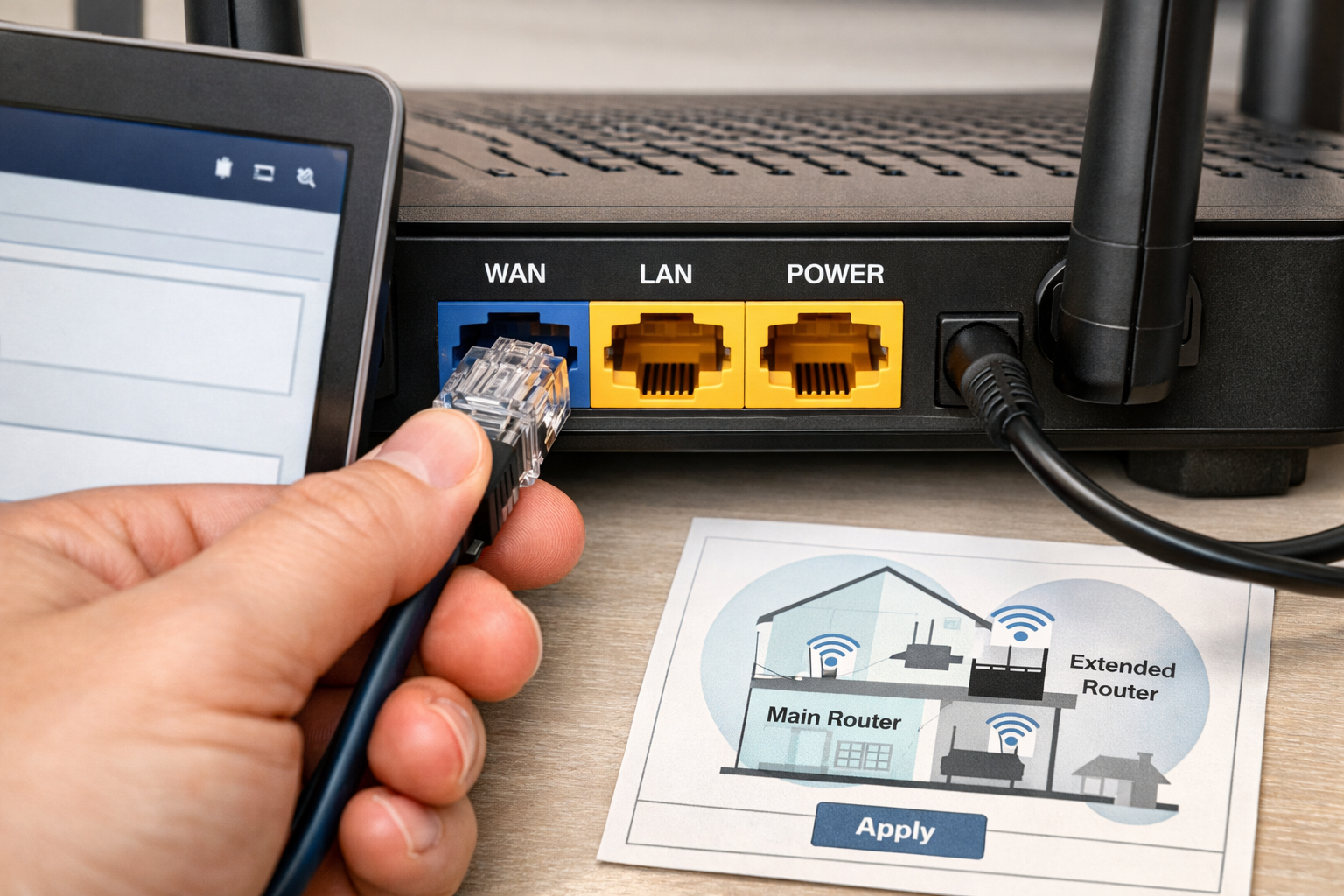
The effectiveness of setting up a second router as a Wi-Fi extender hinges significantly on its physical placement. Even with perfect configuration, poor positioning can negate much of the benefit, leaving you with patchy coverage. Strategic placement ensures your extender receives a strong signal from your main router and, in turn, broadcasts a robust signal to your devices.
The "Sweet Spot" Principle
The ideal location for your second router (acting as an extender) is roughly halfway between your main router and the area you want to cover. It needs to be close enough to the main router to receive a strong, stable signal, but also close enough to the dead zone to effectively broadcast to devices there.
- Not Too Close to the Main Router: Placing the extender too close to the main router means it won't effectively extend the range much further.
- Not Too Far from the Main Router: Placing it too far away means it will receive a weak signal, resulting in a weak, slow signal being re-broadcasted to your devices. A weak input signal equals a weak output signal.
Factors Influencing Signal Strength and Placement
Several environmental and structural factors can impact Wi-Fi signal propagation. Consider these when deciding on your extender's location:
-
Physical Obstructions:
- Walls: Thick walls, especially those with concrete, brick, or metal studs, are major signal blockers. Try to minimize the number of walls between your main router, the extender, and your devices.
- Appliances: Large metal appliances like refrigerators, washing machines, and microwaves can absorb or interfere with Wi-Fi signals. Keep extenders away from these.
- Mirrors and Aquariums: Believe it or not, mirrors (due to their metallic backing) and large bodies of water (like fish tanks) can also reflect or absorb Wi-Fi signals.
-
Interference from Other Electronics:
- Other Wi-Fi Networks: In densely populated areas, neighboring Wi-Fi networks can cause interference. Your router's channel selection can help mitigate this.
- Cordless Phones (2.4 GHz), Baby Monitors, Bluetooth Devices: These can operate on similar frequencies (2.4 GHz) and cause interference.
- Microwave Ovens: When in use, microwaves emit strong interference on the 2.4 GHz band.
-
Height and Line of Sight:
- Elevated Position: Wi-Fi signals tend to propagate downwards. Placing your extender on a higher shelf, tabletop, or even mounting it on a wall can improve coverage. Aim for a position that offers a clear line of sight to both the main router and the desired coverage area.
- Avoid Floors and Corners: Placing the extender directly on the floor or tucked away in a corner can significantly dampen its signal.
-
Antenna Orientation:
- Adjust Antennas: If your second router has external antennas, experiment with their orientation. Often, positioning one antenna vertically and another horizontally can help cover both horizontal and vertical spaces more effectively.
Practical Steps for Optimal Positioning
- Identify Dead Zones: Walk around your home with a Wi-Fi analyzer app on your smartphone or a laptop. Note where the signal drops significantly or disappears entirely.
- Locate the "Halfway" Point: Find a location roughly midway between your main router and the identified dead zone. This is your starting point.
- Check Main Router Signal Strength: Before placing the extender, take your laptop or phone to the potential extender location and check the signal strength from your main router. If the signal is weak (e.g., less than -70 dBm), the extender will struggle. Move it closer to the main router until you get a stronger signal (ideally -50 dBm to -60 dBm).
- Test and Adjust: After positioning the extender, connect devices in the former dead zone and test the Wi-Fi performance. If it's still not optimal, try minor adjustments to the extender's position or antenna orientation.
- Consider Wired Backhaul (AP Mode): For the absolute best performance, especially if you're dealing with very thick walls or long distances, remember that running an Ethernet cable to your second router (using it in AP mode) will always outperform a wireless repeater setup. This provides a dedicated, high-speed connection between the two routers, bypassing all the wireless interference issues. Many professionals in fields requiring stable internet, such as those working in data centers or IT infrastructure, prioritize wired connections for reliability.
By following these guidelines, you can ensure that your efforts in setting up a second router as a Wi-Fi extender yield the best possible results, providing a strong and stable internet connection throughout your space in 2026.
Conclusion: A Free Solution Using E-Waste
In 2026, where digital connectivity underpins nearly every aspect of our lives, from remote work and online education to entertainment and smart home management, dealing with Wi-Fi dead zones is simply unacceptable. This guide has demonstrated that setting up a second router as a Wi-Fi extender is not only a viable and cost-effective solution but also an environmentally conscious one. By repurposing an older router, you transform what might otherwise become electronic waste into a valuable asset, significantly enhancing your home or office network performance.
The distinction between mesh systems and traditional extenders is crucial, highlighting that while mesh offers seamless whole-home coverage with a higher price tag, a well-configured second router as an extender can target specific problem areas with excellent results. Whether you opt for the high-speed stability of Access Point mode via a wired connection or the convenience of Repeater mode, the steps outlined provide a clear pathway to a stronger Wi-Fi signal. Furthermore, the emphasis on strategic positioning underscores that even the best hardware can fall short without thoughtful placement, ensuring optimal signal propagation and minimal interference.
This approach saves money, reduces e-waste, and empowers users to take control of their home network infrastructure. With the rapid evolution of technology, having a solid, reliable internet connection is paramount, particularly for those pursuing international opportunities that heavily rely on online communication and digital applications. For instance, individuals applying for MBA scholarships in the U.S. for international students or fully-funded Masters scholarships in Canada 2026 intake will find consistent connectivity indispensable for virtual interviews and online coursework. Similarly, for professionals seeking caregiver jobs in Canada with visa sponsorship or skilled worker visas to relocate to the UK, a robust home network is foundational.
Actionable Next Steps:
- Gather Your Gear: Locate that old router collecting dust, an Ethernet cable, and your computer.
- Identify Your Router's Capabilities: Check your old router's manual or online specifications to determine if it supports Access Point or Repeater mode.
- Plan Your Placement: Use a Wi-Fi analyzer app to pinpoint dead zones and identify the optimal "sweet spot" for your extender.
- Follow the Configuration Steps: Methodically go through the reset, connection, and configuration steps for your chosen mode (AP or Repeater).
- Test and Optimize: Once set up, rigorously test your network's speed and stability in the extended areas. Don't hesitate to make minor adjustments to placement or antenna orientation for peak performance.
By taking these steps, you’ll not only solve your Wi-Fi woes but also gain a deeper understanding of your home network, all while giving an old device a new lease on life.
SEO Meta Title: Boost Wi-Fi: Second Router as Extender (2026 Guide)
SEO Meta Description: Eliminate dead zones by setting up a second router as a Wi-Fi extender in 2026. Our guide covers AP/Repeater mode, placement, and configuration for better coverage.