

Picture this: It's 3 PM on a Tuesday, and your computer sounds like it's preparing for takeoff. The fan is whirring, the cursor stutters across the screen, and when you glance at your browser, you count not 10, not 20, but 50 open tabs staring back at you. Each one represents an unfinished task, an article you meant to read, or a research rabbit hole you fell into hours ago. Your computer's RAM is gasping for air, and your productivity has ground to a halt. If this scenario feels painfully familiar, you're not alone—and taming the browser tab chaos: extensions that save RAM might be the solution you desperately need.
In 2026, with web applications becoming increasingly complex and memory-hungry, the average browser tab can consume anywhere from 50MB to 500MB of RAM. Multiply that by dozens of tabs, and you've got a recipe for system slowdown that no amount of coffee can fix. The good news? Smart browser extensions and strategic habits can transform your browsing experience from sluggish to snappy.
Key Takeaways
- Browser tabs are RAM vampires: Each open tab consumes significant memory, with modern web apps using 50-500MB per tab
- Extensions can reduce RAM usage by up to 95%: Tools like OneTab and The Great Suspender automatically manage tabs to free up memory
- Native browser features offer built-in solutions: Chrome's tab grouping and other native tools provide organization without additional downloads
- Daily browser routines prevent chaos: Establishing end-of-day habits keeps tab count manageable and system performance optimal
- Strategic tab management improves productivity: Fewer tabs mean faster computers, better focus, and reduced digital overwhelm
Review of "OneTab" vs. "The Great Suspender"

When it comes to taming the browser tab chaos: extensions that save RAM, two heavyweight contenders dominate the conversation. Both OneTab and The Great Suspender (or its modern alternatives) promise to liberate your computer's memory, but they approach the problem from different angles.
OneTab: The Minimalist's Dream
OneTab operates on a beautifully simple principle: convert all your open tabs into a single list with one click. Here's how it works:
- Click the OneTab icon, and every open tab instantly transforms into a list of links
- Your RAM usage drops by an average of 95% immediately
- Tabs can be restored individually or all at once
- Lists can be named, shared, or exported for later reference
Pros:
✅ Dramatic, instant RAM savings
✅ Clean, distraction-free interface
✅ Perfect for research projects with dozens of sources
✅ No automatic suspensions—you control when tabs convert
✅ Free and lightweight (under 1MB)
Cons:
❌ Requires manual action to save tabs
❌ Doesn't work automatically in the background
❌ Can feel disruptive if you need constant tab access
For professionals juggling multiple projects—whether you're researching international opportunities or managing complex workflows—OneTab serves as a digital filing cabinet that keeps your browser lean.
The Great Suspender: The Automatic Guardian
The original Great Suspender was discontinued, but successors like "The Marvellous Suspender" and "Tab Suspender" carry the torch. These extensions take a different approach:
- Automatically suspend tabs after a set period of inactivity (default: 1 hour)
- Suspended tabs remain visible but consume minimal RAM (typically under 5MB)
- Tabs reload instantly when clicked
- Whitelist feature prevents important tabs from suspending
Pros:
✅ Set-it-and-forget-it automation
✅ Maintains visual tab organization
✅ Customizable suspension timers
✅ Whitelist for critical tabs (email, monitoring dashboards)
✅ Gradual RAM savings as tabs suspend naturally
Cons:
❌ Slight delay when reactivating suspended tabs
❌ Can interrupt workflows if suspension timer is too aggressive
❌ Requires configuration to optimize for your usage patterns
The Verdict
| Feature | OneTab | The Great Suspender |
|---|---|---|
| RAM Savings | 95% instantly | 80-90% gradually |
| Automation | Manual | Automatic |
| Tab Visibility | Converts to list | Tabs remain visible |
| Best For | Research sessions, project work | Daily browsing, background tabs |
| Learning Curve | Minimal | Requires setup |
The bottom line? If you're a power user who opens 30 tabs for a specific project, then wants them gone, OneTab is your champion. If you're someone who accumulates tabs throughout the day and forgets about them, The Great Suspender's automatic approach prevents RAM creep without requiring conscious effort.
Many users find success using both extensions simultaneously—The Great Suspender handles background automation while OneTab provides manual control for intentional tab purges.
Grouping Tabs: Chrome's Native Features Explained
Before installing extensions for taming the browser tab chaos: extensions that save RAM, it's worth exploring what your browser already offers. Chrome introduced Tab Groups in 2020, and by 2026, this native feature has matured into a surprisingly powerful organizational tool that indirectly helps with RAM management.
How Chrome Tab Groups Work
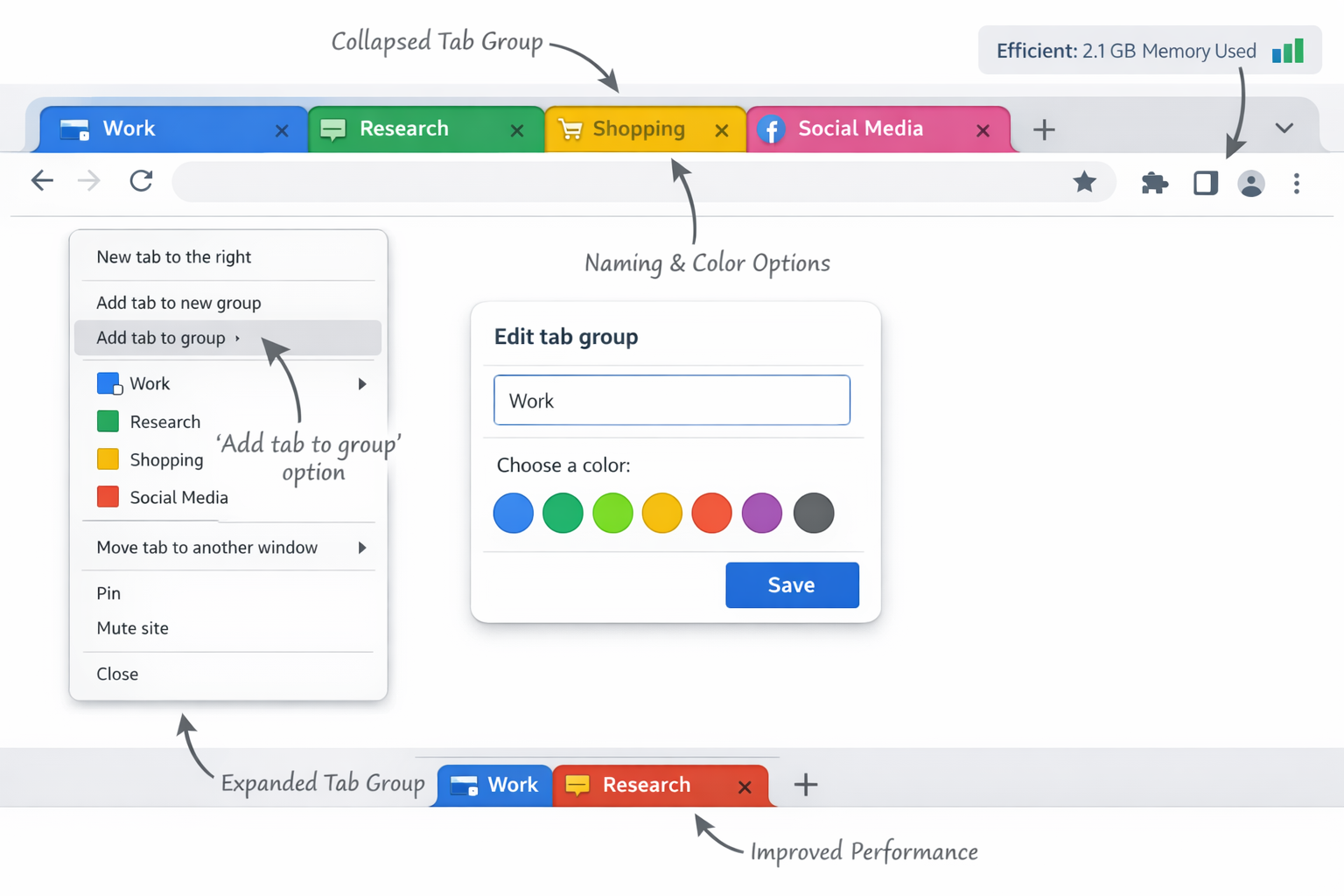
Tab Groups allow you to organize related tabs visually without additional software. Here's the step-by-step:
- Right-click any tab and select "Add tab to new group"
- Assign a color and name (e.g., "Work," "Research," "Shopping")
- Drag tabs into existing groups to organize
- Collapse groups by clicking the colored circle to hide tabs temporarily
Why This Helps With RAM (Indirectly)
While Tab Groups don't directly reduce RAM consumption, they provide psychological and practical benefits:
🧠 Mental clarity reduces tab hoarding: When tabs are organized, you're more likely to close unnecessary ones
📊 Visual accountability: Seeing 15 tabs in your "Random" group motivates cleanup
⚡ Faster navigation: Find tabs quickly without keeping extras open "just in case"
🔄 Session management: Collapse entire groups when switching contexts
Advanced Chrome Features for Tab Management
Beyond basic grouping, Chrome offers several lesser-known features:
Memory Saver Mode (Chrome Settings → Performance)
- Automatically frees up memory from inactive tabs
- Native to Chrome as of version 108
- Reduces RAM usage by up to 30% without extensions
- Tabs remain visible but are "hibernated" in the background
Tab Search (Arrow icon in tab bar)
- Quickly find and close forgotten tabs
- Shows recently closed tabs for easy recovery
- Particularly useful when you have 20+ tabs open
Reading List
- Save articles without keeping tabs open
- Syncs across devices
- Perfect for "read later" content that typically clutters tab bars
Creating a Tab Group System
For professionals managing multiple responsibilities—perhaps you're exploring career opportunities abroad while maintaining current projects—a structured group system prevents overwhelm:
Recommended Group Structure:
| Group Name | Color | Purpose | Max Tabs |
|---|---|---|---|
| 🔴 Urgent | Red | Today's deadlines | 5 |
| 🟡 Active Projects | Yellow | Current work | 10 |
| 🟢 Reference | Green | Documentation, guides | 8 |
| 🔵 Research | Blue | Background reading | 15 |
| 🟣 Personal | Purple | Non-work tabs | 5 |
Set a hard limit for each group. When you hit the maximum, either close a tab or move it to your Reading List. This self-imposed constraint prevents the creeping tab accumulation that murders RAM.
The Power of Collapsing Groups
Here's where Tab Groups shine for RAM management: collapsed groups reduce cognitive load, making it easier to identify and close entire categories of tabs at once. At the end of your workday, you might collapse "Active Projects" and close "Research" entirely, instantly freeing hundreds of megabytes.
For students applying for scholarships or professionals researching international work opportunities, the research phase can easily generate 40+ tabs. Tab Groups provide the organizational structure that makes bulk closing feasible rather than terrifying.
My "End of Day" Browser Routine
The most effective strategy for taming the browser tab chaos: extensions that save RAM isn't a single tool—it's a daily habit. After years of fighting browser bloat, developing an "end of day" routine transformed both computer performance and peace of mind.
The 5-Minute Browser Shutdown Ritual
Step 1: The Quick Audit (60 seconds)
Before closing anything, take inventory:
- How many tabs are open? (Check the tab counter extensions or simply count)
- Which tabs did you actually use today?
- What's been sitting untouched for hours?
This awareness builds the foundation for better habits. You might discover that 80% of your tabs haven't been touched since morning.
Step 2: The Three-Pile Sort (90 seconds)
Mentally categorize every tab into three buckets:
📌 KEEP: Actively needed tomorrow (should be ≤5 tabs)
💾 SAVE: Valuable but not urgent (bookmark or OneTab these)
🗑️ CLOSE: No longer relevant (be ruthless here)
For the SAVE pile, use OneTab to create a dated list like "Research – Jan 15, 2026." This preserves your work without preserving RAM usage. Students researching scholarship opportunities can create separate OneTab lists for different programs, maintaining organization without memory overhead.
Step 3: Execute the Purge (60 seconds)
- Close all tabs in the CLOSE category (Ctrl+W is your friend)
- OneTab the SAVE category
- Arrange KEEP tabs in a single group named "Tomorrow"
Step 4: Clear the Cache (30 seconds)
Once weekly, clear browsing data:
- Chrome Settings → Privacy and Security → Clear browsing data
- Select "Cached images and files"
- Keep cookies if you want to stay logged in
This frees additional RAM and prevents browser sluggishness.
Step 5: Restart the Browser (30 seconds)
Completely quit and restart your browser. This:
- Clears memory leaks that accumulate over time
- Resets extension performance
- Provides a clean slate for tomorrow
The Weekend Deep Clean
Every Sunday, perform a more thorough maintenance:
🔍 Review OneTab lists: Delete outdated lists, restore anything still relevant
🧹 Audit extensions: Disable or remove extensions you haven't used in a month
📊 Check RAM usage: Open Task Manager (Windows) or Activity Monitor (Mac) to see which sites are memory hogs
🔖 Organize bookmarks: File loose bookmarks into folders so you don't need tabs as reminders
Building the Habit
The key to making this routine stick is triggering it with an existing habit. Tie your browser cleanup to something you already do daily:
- Before shutting down your computer
- After your last video call
- When you close your work notebook
- Before checking personal email
For professionals exploring relocation opportunities or international career paths, research can span weeks with dozens of tabs. The daily routine prevents that research from becoming a permanent RAM burden.
The Results
After implementing this routine for 30 days:
- Average tab count drops from 40+ to 8-12
- Computer fan noise decreases noticeably
- Browser startup time improves by 3-5 seconds
- Mental clarity increases (fewer visual distractions)
- RAM usage typically stays under 2GB for browser (vs. 6-8GB before)
"The browser cleanup routine isn't just about RAM—it's about digital hygiene. Just as you wouldn't leave 50 books open on your desk overnight, you shouldn't leave 50 tabs open in your browser."
Conclusion: Speed Up Your Computer by Managing Your Habits
Taming the browser tab chaos: extensions that save RAM ultimately comes down to a combination of smart tools and smarter habits. The extensions—whether OneTab's instant consolidation or The Great Suspender's automatic management—provide the technical solution to RAM overconsumption. Chrome's native Tab Groups offer organizational structure without additional software. But the real breakthrough happens when you establish daily routines that prevent chaos from accumulating in the first place.
Your Action Plan for Immediate Results
Today:
- Install OneTab or The Marvellous Suspender (or both)
- Enable Chrome's Memory Saver mode in Settings → Performance
- Create 3-5 Tab Groups for your most common activities
- Perform your first end-of-day browser cleanup
This Week:
- Experiment with suspension timers in The Great Suspender
- Set a tab limit for each Tab Group
- Practice the 5-minute shutdown routine daily
- Clear your browser cache
This Month:
- Review which extension works best for your workflow
- Refine your Tab Group system based on actual usage
- Implement the Sunday deep clean
- Measure your RAM savings using Task Manager
The Bigger Picture
Managing browser tabs isn't just about technical performance—it's about cognitive performance. Every open tab represents an incomplete task, a decision deferred, or a distraction waiting to happen. By implementing these strategies, you're not just freeing up RAM; you're freeing up mental bandwidth.
For professionals managing complex research—whether exploring educational opportunities, career transitions, or international relocation—the tab management strategies outlined here transform overwhelming information gathering into organized, actionable research.
The computer fan that sounds like a jet engine? It'll quiet down. The stuttering cursor? It'll glide smoothly. The anxiety of seeing 50 open tabs? It'll transform into the calm confidence of a well-organized digital workspace.
Start with one change today. Install OneTab. Create your first Tab Group. Close 10 tabs right now. Your computer's RAM—and your peace of mind—will thank you.